 TheGameHosting Team
To make a Project Zomboid server private, set a Password in servertest.ini, turn Public off so it does not show in the server list, and for a whitelist turn Open off and add each player with /adduser "username" "password". Restart the server after you edit the file.
Three ways to keep strangers out
Project Zomboid gives you three separate controls. You can use one, or combine them:
| Control | Setting | What it does |
|---|---|---|
| A server password | Password | Players must know the password to connect |
| A whitelist | Open off, plus /adduser | Only accounts you create can log in |
| Hidden from the list | Public off | The server does not show in the public server list |
For a group of friends, the simplest setup is a password and Public off. For a community where you want to know every account, add the whitelist.
Step 1: set a server password
This is the quickest way to make a server private.
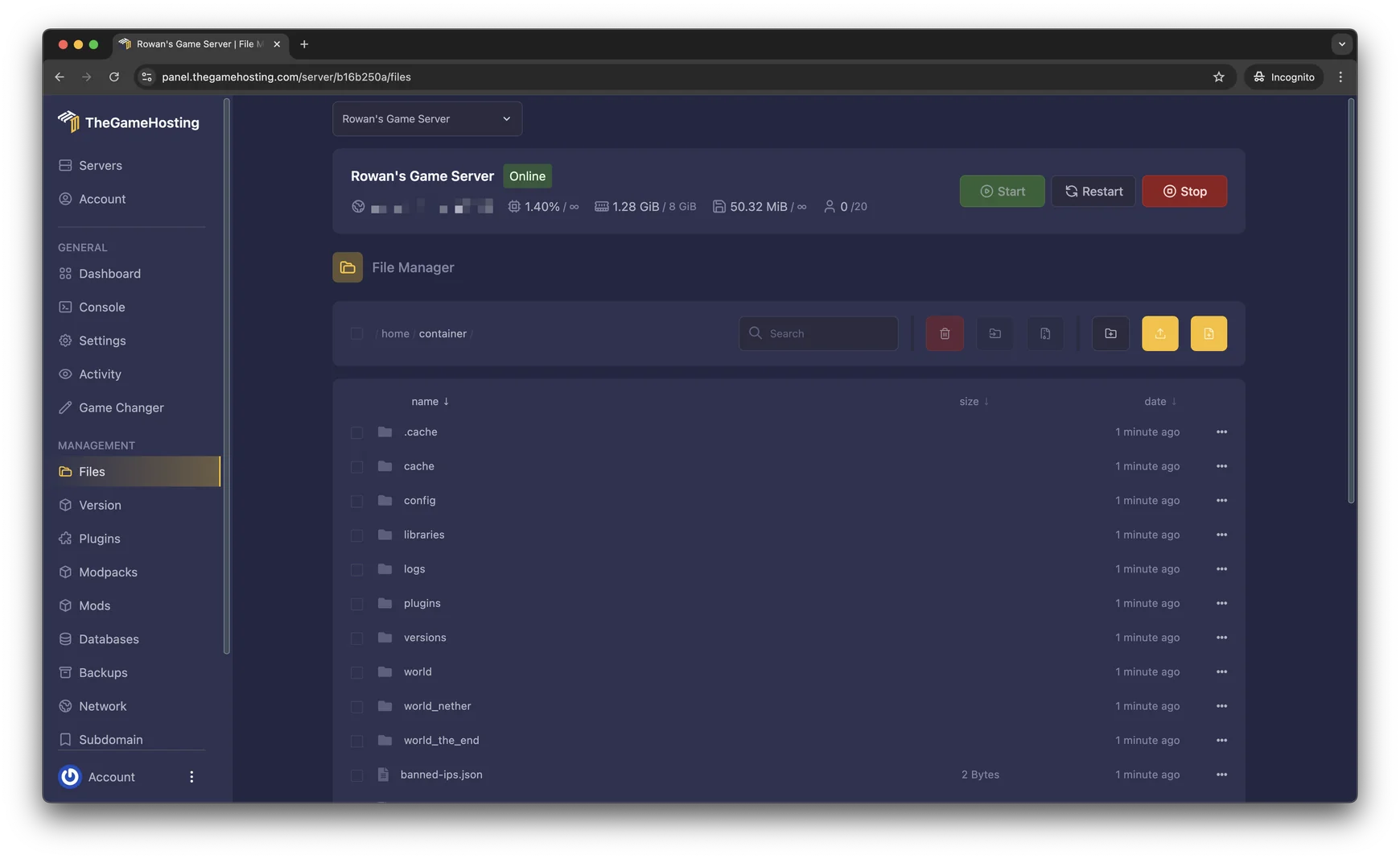
- Make a backup. In our panel, open Backups and create one.
- Stop the server with the Stop button on the Console page.
- Open the server
.inifile in the File Manager. On a default install it isservertest.ini. - Set the password. Find the
Password=line and add your password. - Save and start the server.
Password=your-password-herePlayers type this password when they join. Choose one you do not use anywhere else, and share it in a private chat. If it leaks, change it and tell your group.
Step 2: hide the server from the public list
In the same file, set Public off. The server stops showing in the public list, and players join by adding its address and port to their own list. See Project Zomboid servertest.ini settings explained for every option in the file.
Step 3: build a whitelist
A whitelist means only accounts that you created can log in. By default, an open server lets anyone who knows the address create an account when they join. You close that with Open.
- Turn
Openoff inservertest.ini, then save and restart the server. - Create an account for each player. In the server console, or in the game chat if you are admin with a slash in front, run:
adduser "username" "password"The PZwiki Admin commands page describes this command as adding a new user to a whitelisted server. Give each player their username and password, and they log in with it.
Two more commands help:
/addalltowhitelistwhitelists every player who is connected and has a password, which protects their accounts. It is listed on the wiki's French and Chinese pages./removeuserfromwhitelisttakes someone off the whitelist. Check the wiki page for the build you run, because the syntax has changed between builds.
You need to be admin to run these. See Project Zomboid admin commands and how to become admin.
What your players do to join
Once the server is private, send your group the three things they need:
- The address and port. In our panel, copy the server address and use port 16261, the default game port.
- The password, if you set one.
- Their account, if you use a whitelist: the username and password you created with
/adduser.
Players open the multiplayer menu, add the server with its address and port, and type the credentials when asked. Everyone needs the same build of the game as the server, and the same mods. Project Zomboid can't connect to server lists what to check when a friend cannot get in.
Running a whitelist over time
A whitelist is a small admin job, so make it easy on yourself:
- Keep a list of who has an account, in your Discord or a note, so you can find people later.
- Add players in a batch when they are all online and have set passwords, with
/addalltowhitelist. - Remove people who left the group, so old accounts do not stay active.
- Back up your save on a schedule. Accounts and characters live in the save, so a backup also protects them.
Password or whitelist: how they compare
| Server password | Whitelist | |
|---|---|---|
| Setup | One line in servertest.ini | Open off, plus /adduser for each player |
| Who gets in | Anyone who knows the password | Only accounts you created |
| If it leaks | Change the password and tell everyone | Remove the account |
| Best for | A few friends | A community where you want to know every account |
Which setup is right for you?
- A few friends:
Passwordon,Publicoff. No whitelist needed. - A group that wants to know who is who: whitelist with
Openoff, andPublicoff. - A public community with rules:
Publicon,Openon, a welcome message with the rules and moderators with themoderatorlevel. See the admin commands page. - A trial for new players: start with
Openon, and switch to a whitelist when the group is settled.
Private does not mean unprotected
A password and a whitelist stop strangers. They do not stop a problem player you invited. Keep these habits:
- Use moderators for people who help with players, and keep admin for the fewest people.
- Back up your save on a schedule, so griefing or a bad mod never costs you the world.
- Leave
DoLuaChecksumon, which checks that players' game files match the server's. - Write your rules in the welcome message and in your Discord.
If a player says they cannot join your private server, Project Zomboid can't connect to server goes through the usual causes, including a wrong password.
FAQ
How do I make my Project Zomboid server private?
Set a Password in servertest.ini, turn Public off so the server is not in the list, and restart. For a stricter setup, turn Open off and add players with /adduser.
What does the Open setting do in Project Zomboid?
When Open is on, anyone who joins can create an account. When it is off, only accounts you create, for example with /adduser, can log in. That is a whitelist.
How do I add a player to the whitelist?
Run /adduser "username" "password" as an admin. Share the username and password with the player, who then logs in with them.
Can players still find a private server?
If Public is off, the server does not show in the public list. Players need the address and port, and the password if you set one.
Do I need both a password and a whitelist?
No. A password is enough for a few friends. A whitelist is better when you want to control every account.
Hosting for this game
Written by TheGameHosting Team, the people who run our servers in Dallas and Amsterdam and answer your tickets.
All posts