 TheGameHosting Team
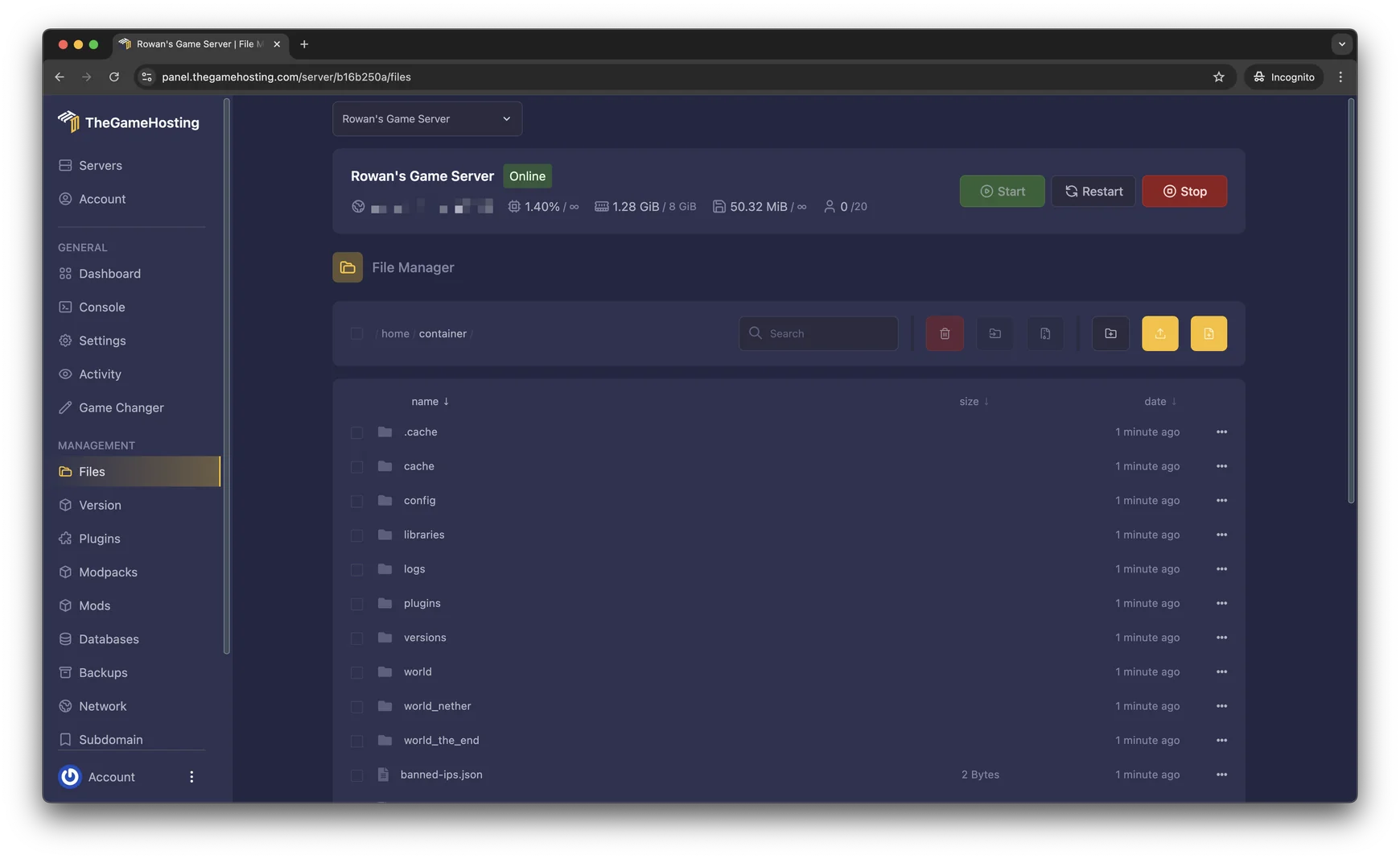
To install Oxide on a Rust server, stop the server, download Oxide.Rust-linux.zip (or Oxide.Rust.zip on Windows) from the Oxide GitHub releases, extract it over the server files and start the server. For Carbon, extract its release archive into the same root folder. Install one, never both.
Before you start
- Choose your framework. Oxide vs Carbon compares them. Pick one, because the two cannot run in the same server install.
- Update Rust first. The framework build has to match your Rust build. Run your normal server update before you install anything.
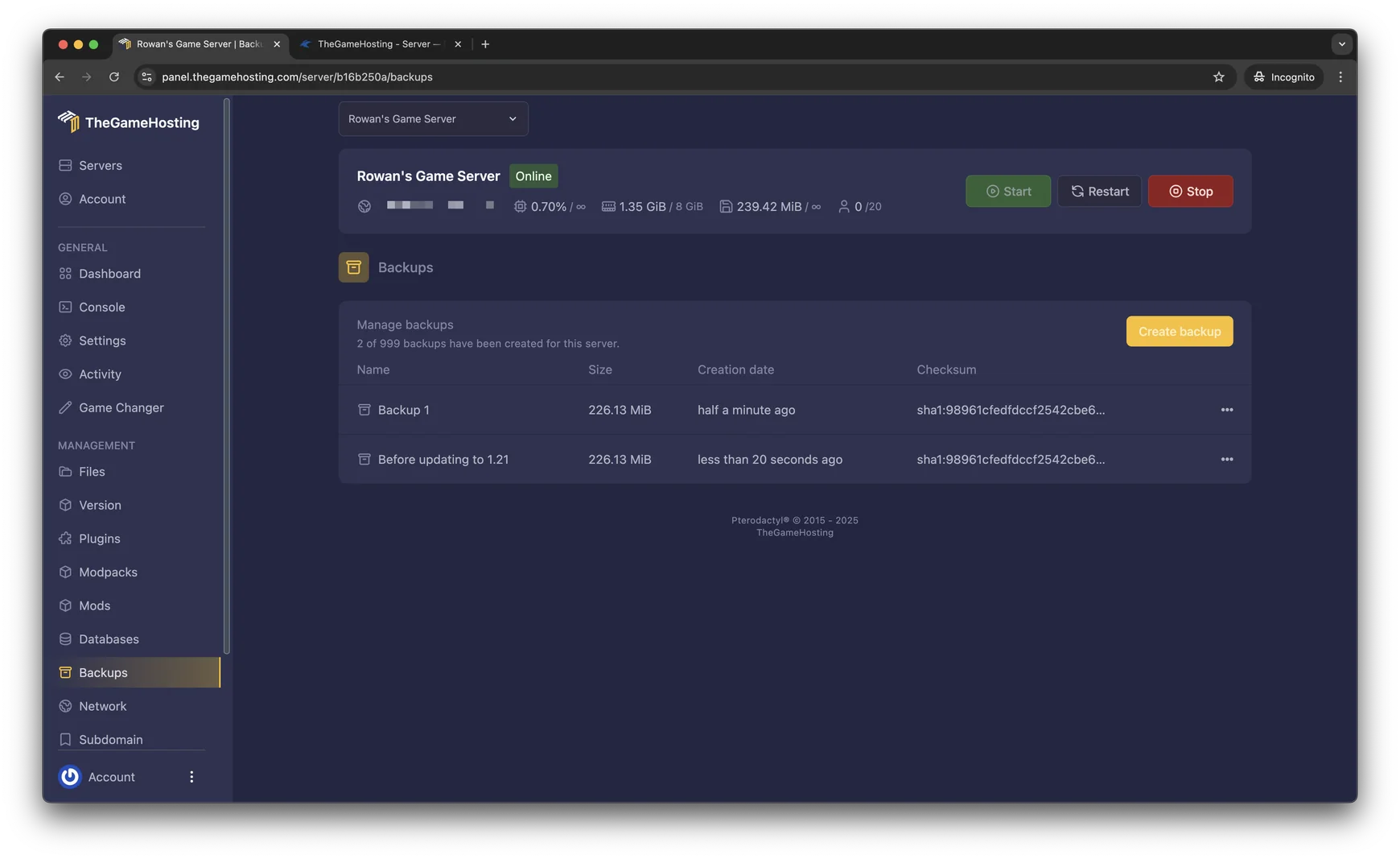
- Take a backup. In our panel, open Backups and create one. It gives you a way back.
- Stop the server. Oxide's install guide warns that installing while the server runs can cause problems.
How to install Oxide on a Rust server
These steps follow the Oxide install guide.
- Download the latest release from github.com/OxideMod/Oxide.Rust/releases. Skip any release labeled Pre-release.
- Pick the right file.
Oxide.Rust-linux.zipis for Linux servers andOxide.Rust.zipis for Windows servers. Servers on our panel run Linux. - Extract it on your computer into a temporary folder first, not straight into the server.
- Upload the contents to the root of your server, the folder that holds
RustDedicatedand theRustDedicated_Datafolder. In the File Manager, use the upload button. Over SFTP, copy the files across. Overwrite files when asked. - Start the server. Oxide loads on its own.
- Check that it works. Look for Oxide lines in the console, or type this:
oxide.versionYou should see the Oxide version and branch. If the command is unknown, Oxide did not load. Check first that the release matches your Rust build.
How to install Carbon on a Rust server
These steps follow Carbon's getting started page.
- Download the production build. Carbon publishes release files on GitHub under the
production_buildtag. The Linux file isCarbon.Linux.Release.tar.gzand the Windows file isCarbon.Windows.Release.zip. The docs describe production as the most stable build for the public Rust release. - Upload the archive to the server root, next to
RustDedicated, and extract it there. In the File Manager, open the file's menu and unarchive it. Keep the folder structure exactly as it is in the archive. - Check for a
carbonfolder at the top level of the server. - Start the server. Look for Carbon lines in the console, then run:
c.versionCarbon's configuration lives in carbon/config.json. Its SelfUpdating option is on by default, so Carbon patches itself on boot after a Rust update.
Where Oxide and Carbon keep their files
Once installed, you will work in a few folders. Paths are from the server root.
| What | Oxide | Carbon |
|---|---|---|
Plugin files (.cs) | oxide/plugins | carbon/plugins |
| Plugin settings | oxide/config | carbon/configs |
| Framework settings | oxide.config.json | carbon/config.json |
Oxide also keeps plugin data in oxide/data, translations in oxide/lang and logs in oxide/logs. Back up the data folder, because plugins store player data there.
How to install a plugin
The method is the same on both frameworks. This uses Oxide's plugin install guide. Browse plugins on uMod.
- Download the plugin's
.csfile. Do not rename it or change its extension. - Upload it into
oxide/pluginson Oxide, orcarbon/pluginson Carbon. - Wait a few seconds. The framework notices the new file and compiles it. You do not need to restart the server.
- List your plugins to make sure it loaded:
oxide.pluginsOn Carbon, use c.plugins instead. The Oxide list shows the plugins that loaded, and also the ones that failed, with the reason.
To change a plugin's settings, edit the file it creates in the config folder (configs on Carbon), then reload just that plugin:
oxide.reload PluginNameCarbon uses c.reload PluginName. To update a plugin, replace its .cs file. The framework reloads it for you.
Give players permission to use a plugin
Many plugins hide their commands behind permissions. On Oxide you grant them from the console:
oxide.grant group default pluginname.usedefault is the group every player belongs to, and admin is the group for owners. You can also grant a permission to one player by using user and their name or Steam ID in place of group default. How to become admin on a Rust server covers owners and moderators.
What to do after every Rust update
Rust updates on the first Thursday of every month, and Facepunch ships hotfixes in between. After each update:
- Back up the server.
- Update Rust with SteamCMD or your normal method.
- Oxide: download the release that matches the new Rust build and extract it over the server files again. Its guide says every Facepunch update has an Oxide update.
- Carbon: start the server and let it patch itself on boot.
- Check the plugin list and fix any plugin that failed. Wipe days are the busiest time to find a broken plugin, so see how to wipe a Rust server before the first Thursday.
How to check a plugin before you install it
A plugin is code that runs inside your server, so treat each one the way you would treat a program on your own PC.
- Download from the plugin's official page, on uMod or the author's own page. Avoid copies re-uploaded to file-sharing sites.
- Read the description and the comments. Authors list the Rust version, the dependencies and the permissions the plugin adds. Recent comments tell you if the last update broke something.
- Open the
.csfile. Plugins are plain text. If a plugin asks for access you do not expect, such as sending data to a web address, leave it out. - Add one plugin at a time, and run
oxide.pluginsafter each. If the server starts to lag, you know which one caused it. - Keep the list short. Every plugin you load costs memory and CPU, and plugins that overlap can conflict.
Why a plugin does not load
Run the plugin list and read the reason next to the failed plugin. The usual causes:
- The framework does not match the Rust build. Update Oxide, or let Carbon finish its self-update.
- The plugin is out of date. Plugins that depend on game code can break after an update. Download the latest version of the file.
- A plugin needs another plugin. The error names it.
- Two copies of the same plugin. Keep only the newest file.
FAQ
Do I need Oxide or Carbon to run plugins?
Yes. Vanilla Rust cannot load plugins. Install Oxide or Carbon, then drop plugin .cs files into the plugins folder.
Can I install both Oxide and Carbon?
No. Carbon's documentation says they cannot coexist in one server install, and running both will break the server.
Do I have to restart the server after adding a plugin?
No. Oxide notices new or changed .cs files in the plugins folder and compiles them on its own. Carbon watches its plugins folder the same way.
Why did my plugins stop working after a Rust update?
The framework no longer matches the new Rust build. With Oxide, install the release made for that Rust update. With Carbon, restart so that it can patch itself.
Where do I find plugins?
uMod hosts a large plugin library for Rust. Read each plugin's page for the Rust version it supports, and download the .cs file.
Hosting for this game
Written by TheGameHosting Team, the people who run our servers in Dallas and Amsterdam and answer your tickets.
All posts