 TheGameHosting Team
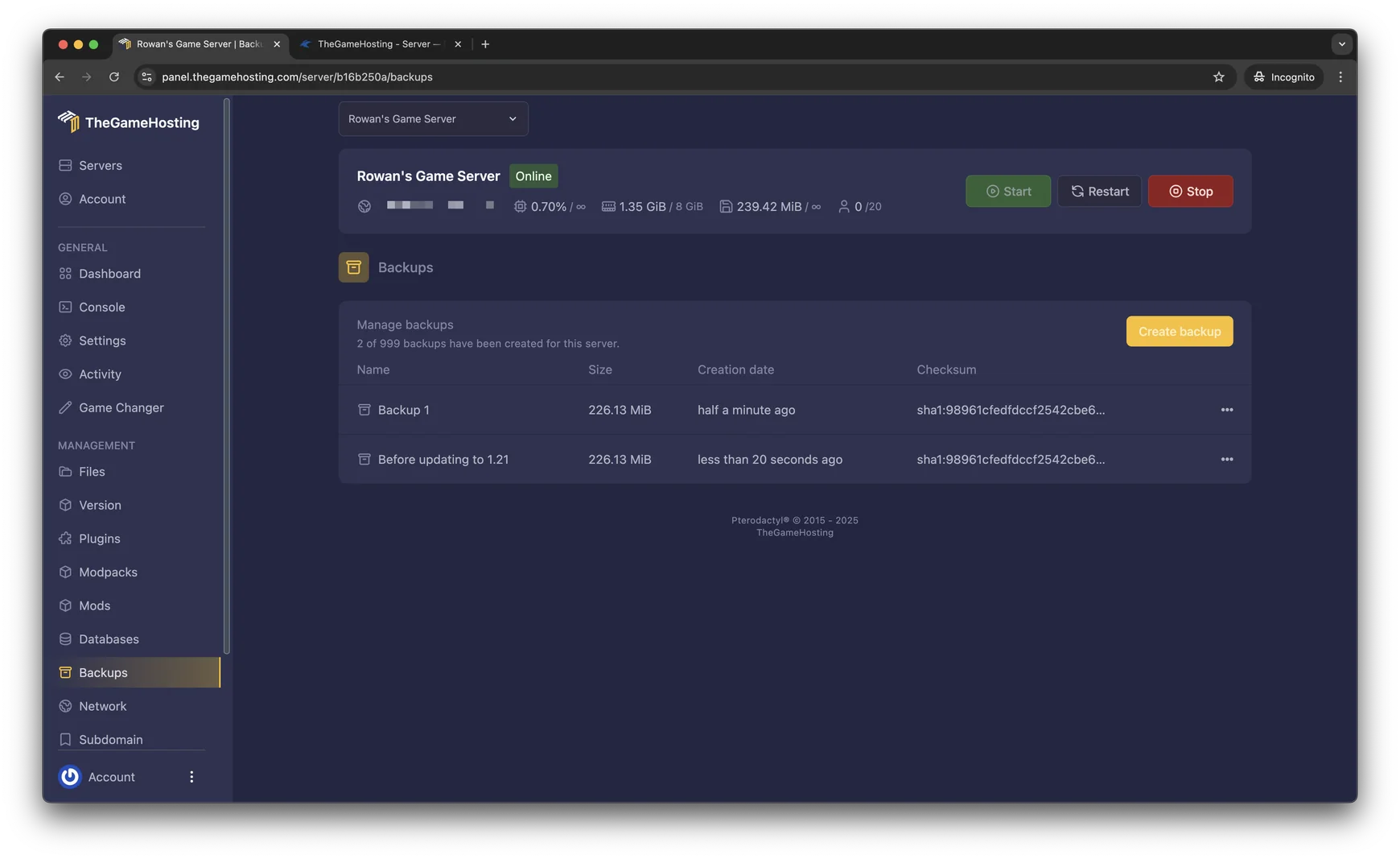
To become admin on a Rust server, run users in the server console to get your SteamID64, then run ownerid <SteamID64> "<name>". Reconnect to the server and the log shows your new auth level. Use moderatorid the same way for moderators. The change saves on its own.
What you need first
- Access to the server console. On a hosted server, that is the Console page in the panel. On a server you run yourself on Linux, use an RCON client, because the Linux console is not interactive.
- Your SteamID64. It is the long number that identifies your Steam account, such as
76561198123456789. - To be connected to the server, if you want to get the number with the
userscommand.
If you have no server yet, start with how to make a Rust server.
How to make yourself admin on a Rust server
These steps follow Facepunch's Creating a server guide.
- Join your server with the Steam account you want to make the owner.
- Open the server console. In our panel, open Console.
- Find your SteamID64. Run
users. Each connected player is listed with their ID and name. - Run the owner command with your own ID and name, as in the example below.
- Reconnect to the server. Leave and join again.
- Check the log. Facepunch says you should see
has auth levelin the log when you join. Admin commands now work in your F1 console.
usersownerid 76561198123456789 "TomSmith"The console answers Added owner TomSmith, steamid 76561198123456789. Replace the example ID and name with yours. Facepunch notes the changes are saved automatically.
How to add moderators
Moderators have a lower level than owners. Use the same pattern with moderatorid:
moderatorid 76561198123456789 "PlayerName"Give owner rights to as few people as possible. The next section explains the difference.
| Command | Level | Use it for |
|---|---|---|
ownerid <SteamID64> "<name>" | Owner | You and people you trust with the whole server |
moderatorid <SteamID64> "<name>" | Moderator | Helpers who handle players |
Edit users.cfg by hand
Admins live in a file named users.cfg, in the same cfg folder as your server.cfg. Oxide's docs give its location as /server/my_server_identity/cfg/. Facepunch shows one line per admin:
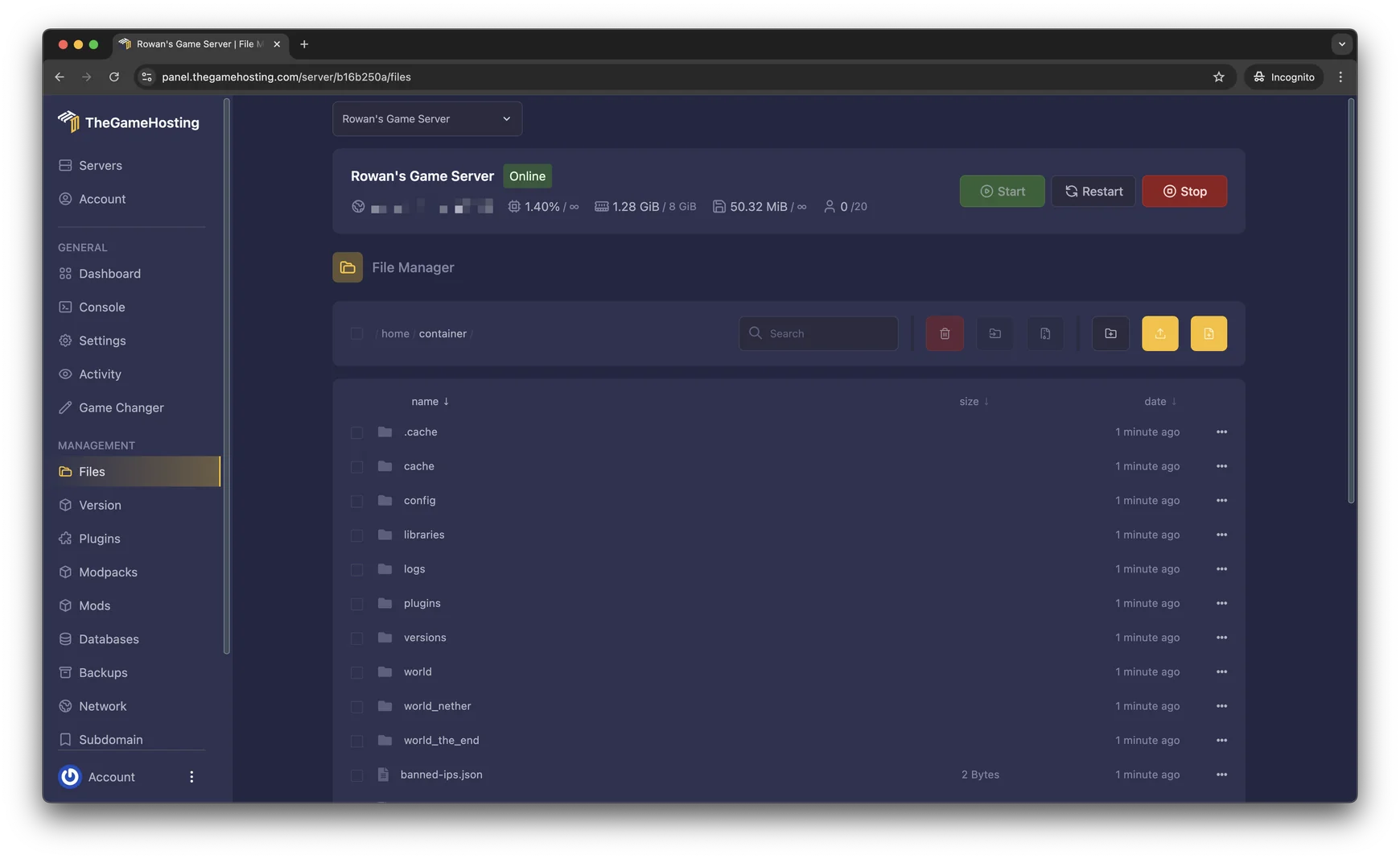
ownerid 76561198123456789 "TomSmith" ""You can add, change or remove admins in this file when the server is stopped. To remove someone, delete their line. Open it in the File Manager, save, and start the server again. Rust server.cfg settings explains the rest of the cfg folder.
Use RCON to run commands from outside the game
RCON lets admin tools connect to your server from outside the game. It uses a port and a password, both set in your start options:
+rcon.portis the RCON port. It uses TCP, and Facepunch's example uses 28016.+rcon.passwordis the password. Facepunch's guide says "Change this value!!!" and it means it.+rcon.web 1is the option Facepunch suggests, because it lets web-based tools connect.
Facepunch hosts a web RCON tool. Its page notes the tool is not HTTPS, so avoid using it on public Wi-Fi. A strong, unique password matters most. Anyone with the RCON password has full control of your server. Never post it in Discord or in a screenshot.
Admin commands worth knowing
Once you are an owner, these commands from Facepunch's useful commands page are the ones you will use most. Run them in the server console, over RCON, or in your F1 console once you are admin.
| Command | What it does |
|---|---|
status | Lists the players on the server with Steam ID, name, ping, time played and IP address. Admin only |
users | Lists connected players with their SteamID64 |
players | Lists the players on the server |
playerlist | Returns the player list as JSON, for tools |
fps | Returns the current frames per second |
version | Shows the game version |
find <text> | Searches the console commands that contain the text |
find is the one to remember. If you do not know a command's exact name, type find and a word, such as find ban, and the console lists the matches. For lag, Rust server lag: how to fix low server FPS uses fps and status to track down the cause.
Running admin commands on a hosted server
On a hosted server you do not need to open an RCON port to get started. The Console page in the panel sends commands straight to your server, so users and ownerid work from there. RCON is for tools that run outside the panel, such as a web console or a Discord bot. If you want one, set the password first and keep it private.
Admins and plugins
If you run Oxide, an owner is added to Oxide's admin group on their own. Oxide's permissions guide says the admin group is assigned to ownerid admins automatically, and default goes to everyone. Plugin permissions are then granted to groups or to single players:
oxide.grant group admin pluginname.useCarbon uses c.grant. How to install Oxide or Carbon on a Rust server covers permissions in more detail.
Keep your admin list safe
- Give owner rights to as few people as you can, and use moderators for helpers.
- Use your own SteamID64. One wrong digit gives admin to a stranger.
- Back up your
cfgfolder now and then, so you can restore your admin list and bans. - Change the RCON password when a helper leaves.
- Remove old admins from
users.cfgwhen they stop helping.
If the command does not work
- You did not reconnect. The auth level appears when you join, so leave and join again.
- A wrong ID. Run
usersagain and copy the ID exactly, with no spaces. - You ran it in the wrong place. Run it in the server console or over RCON, not in a player's F1 console.
- The file was edited while the server ran. Stop the server first when you edit
users.cfg.
FAQ
How do I make myself admin on a Rust server?
Run users to find your SteamID64, then ownerid <SteamID64> "<name>" in the server console. Reconnect, and the log shows your auth level. Facepunch says the changes save automatically.
What is the difference between ownerid and moderatorid?
ownerid gives owner rights, and moderatorid gives moderator rights. Use ownerid for yourself and a few trusted people, and moderatorid for helpers.
Where is the Rust admin list stored?
In users.cfg, in the cfg folder of your server identity, next to server.cfg. Each admin is one line, such as ownerid 76561198123456789 "TomSmith" "".
How do I find my SteamID64?
Join the server and run users in the server console. It lists each connected player with their SteamID64.
Can I run admin commands from outside the game?
Yes, with RCON. Set +rcon.port, +rcon.password and +rcon.web 1 in your start options, and connect with an RCON tool. Use a strong password and do not share it.
Hosting for this game

Written by TheGameHosting Team, the people who run our servers in Dallas and Amsterdam and answer your tickets.
All posts