 TheGameHosting Team
PalWorldSettings.ini holds every rule of your Palworld server: the name, the passwords, the experience and capture rates, the death penalty and the player limit. Stop the server, copy DefaultPalWorldSettings.ini into the Config folder, edit the copy and restart. Settings do not apply while the server is running.
This guide uses Pocketpair’s own configuration reference for version 1.0.4 as of November 2026. It explains where the file lives, groups the settings that matter and shows what to check when a change does not take effect.
Where the file lives and how to edit it
The Config folder is created the first time the server starts. Copy the default file into it, because editing the default itself has no effect:
cp steamapps/common/PalServer/DefaultPalWorldSettings.ini steamapps/common/PalServer/Pal/Saved/Config/LinuxServer/PalWorldSettings.iniOn Windows the folder is Pal\Saved\Config\WindowsServer. The default file starts with a [/Script/Pal.PalGameWorldSettings] header and one OptionSettings=(...) line that holds every setting, separated by commas. Change the values you want inside that line, and keep the decimals on rates, for example ExpRate=2.000000.
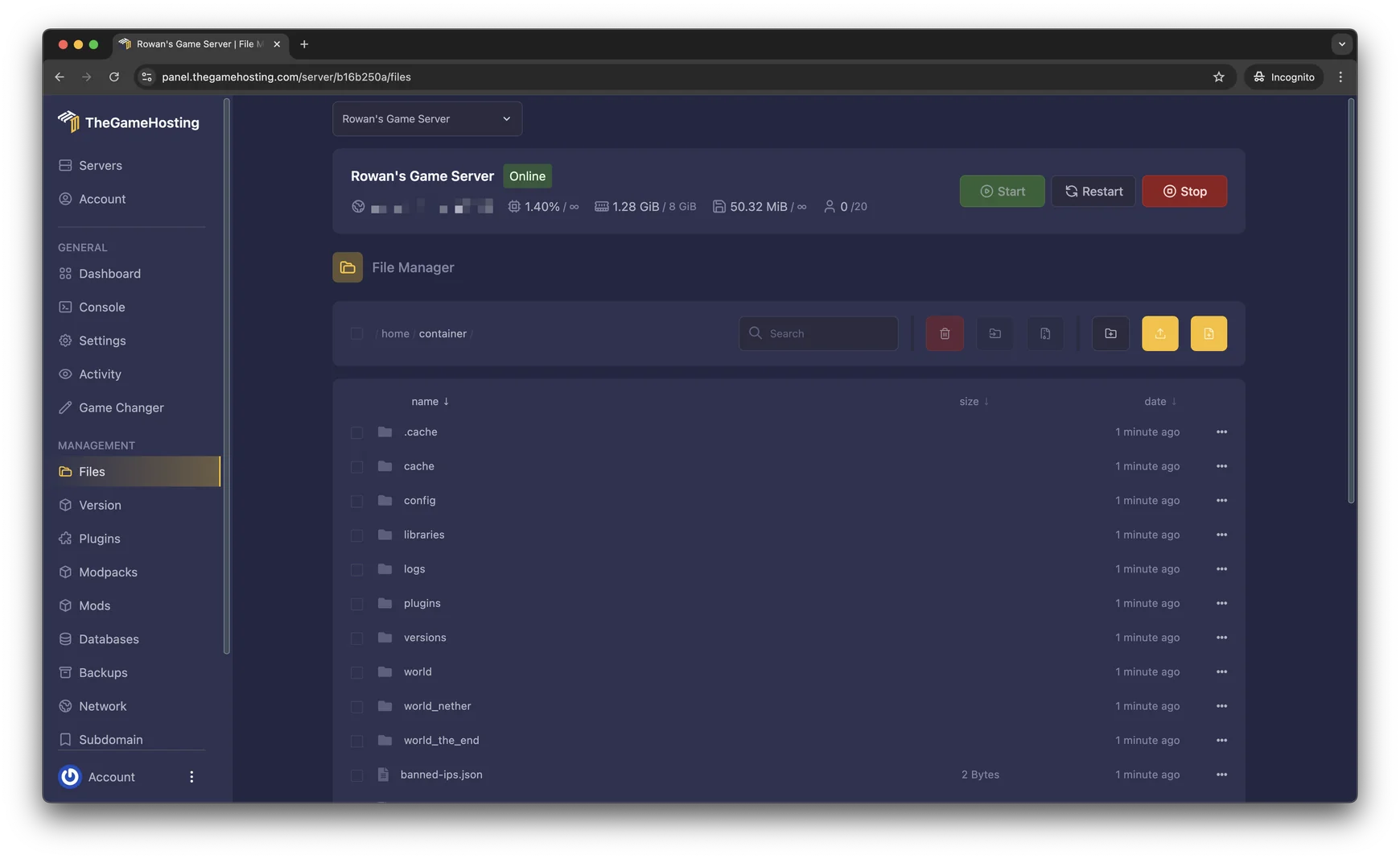
On TheGameHosting you do not need a terminal. Open Files in the panel, find PalWorldSettings.ini, edit it in the browser, save and restart from the Console. You can also reach the files over SFTP.
Server settings
| Setting | What it does |
|---|---|
ServerName, ServerDescription | The name and description players see. |
ServerPassword | The password players need to join. |
AdminPassword | The password for admin rights in game. |
ServerPlayerMaxNum | The maximum number of players. A dedicated server supports up to 32. |
CrossplayPlatforms | Which platforms may connect. The default is (Steam,Xbox,PS5,Mac). |
PublicIP, PublicPort | For community servers: the external address and port. They do not change the port the server listens on. |
RCONEnabled, RCONPort | Turns on RCON. Pocketpair marks RCON as deprecated. |
RESTAPIEnabled, RESTAPIPort | Turns on the REST API and sets its port. |
bIsUseBackupSaveData | Keeps rolling backups of the save. It increases disk load. |
Rates that change how the game feels
Multipliers use 1.0 as the standard value. These are the ones most owners adjust:
| Setting | What it does |
|---|---|
ExpRate | Experience gain multiplier. |
PalCaptureRate | Capture rate multiplier. |
EnemyDropItemRate | Quantity of items dropped by enemies. |
CollectionDropRate | Quantity of gatherable items. |
DayTimeSpeedRate, NightTimeSpeedRate | How fast day and night pass. |
PalEggDefaultHatchingTime | Hours to hatch a Huge Egg. Other eggs also need time to incubate. |
ItemWeightRate | Item weight multiplier. |
BuildObjectDeteriorationDamageRate | How fast buildings decay. |
DeathPenalty | None drops nothing, Item drops all items except equipment, ItemAndEquipment drops all items, and All also drops the Pals on your team. |
A relaxed server for friends might use ExpRate=2.000000 and PalCaptureRate=1.500000, with DeathPenalty=None. A harder one might keep the rates at 1 and use DeathPenalty=All. These are examples, not rules, so pick what suits your group.
Game rules
| Setting | What it does |
|---|---|
bIsPvP | Enables PvP. |
bHardcore | You cannot respawn after you die. |
bEnableInvaderEnemy | Enables base raids by invaders. |
bEnableFastTravel, bEnableFastTravelOnlyBaseCamp | Turns fast travel on, or limits it to bases. |
bEnableVoiceChat | Turns in-game voice chat on. |
bPalLost | Pals are lost permanently when they die. |
bShowPlayerList | Shows the player list in the ESC menu. |
bAutoResetGuildNoOnlinePlayers | Deletes structures and base Pals of guilds with no online members after a set time. |
Settings that affect performance
Some options cost the server more work the higher you set them. Pocketpair flags these in its reference:
| Setting | What to know |
|---|---|
BaseCampMaxNumInGuild | Bases per guild. The default is 4 and the maximum is 10. Raising it increases processing load. |
BaseCampWorkerMaxNum | Pals per base, up to 50. Raising it increases processing load. |
PalSpawnNumRate | Pal spawn rate. Pocketpair notes that it impacts performance. |
ServerReplicatePawnCullDistance | How far from players Pals are synced, between 5000 and 15000 cm. |
MaxBuildingLimitNum | Per-player building cap. 0 means unlimited. |
If the server lags with a full group, start with these. Our Palworld server lag fix goes through them in order, and the setup guide shows how to install the server first.
Three starting presets
Change only the values inside your OptionSettings line, not the whole line. These are starting points for common server types:
Relaxed server for friends
ExpRate=2.000000
PalCaptureRate=1.500000
DeathPenalty=None
bEnableInvaderEnemy=False
Faster levelling, easier captures, nothing dropped on death and no raids. This also keeps the server light, because raids add load.
Classic survival
ExpRate=1.000000
PalCaptureRate=1.000000
DeathPenalty=All
bEnableInvaderEnemy=True
The standard multipliers with the harshest death penalty, as described above: dying drops all items and the Pals on your team.
Hardcore
bHardcore=True
bPalLost=True
DeathPenalty=All
You cannot respawn after you die and Pals are lost for good. Tell your players before you switch it on, because it changes how everyone plays.
Check what the server is really using
After a restart, do not guess whether your edit worked. If you enabled the REST API (RESTAPIEnabled=True), the official reference lists a GET /settings endpoint that returns the server settings, including ExpRate, PalCaptureRate and PalSpawnNumRate. The /Info admin command shows basic server information in game, and you can learn how to log in as admin in how to become admin on a Palworld server.
Keep the REST API on your local network, as Pocketpair advises, and change one group of settings at a time. When something breaks, you will know which edit caused it.
When a change does not apply
- You edited the default file. Edit the copy in the Config folder instead.
- The server was running. Stop it, edit, then start it again.
- A formatting slip. A missing comma or parenthesis inside the
OptionSettingsline can make the server ignore the file. Compare your line with the default. - An old world keeps its options. The migration guide of the community tool palworld-host-save-fix says to delete
WorldOption.savin the world folder so thatPalWorldSettings.inican be modified. Back up the world first, because players may have to choose their respawn point again.
FAQ
Where is PalWorldSettings.ini?
In Pal/Saved/Config/LinuxServer/ on a Linux server and in Pal\Saved\Config\WindowsServer\ on Windows, inside the PalServer folder. The folder appears after the server has started once. Copy DefaultPalWorldSettings.ini into it and edit the copy.
Why does my Palworld server ignore my settings?
Pocketpair notes that editing DefaultPalWorldSettings.ini changes nothing, so edit the copy in the Config folder. Stop the server before you edit and start it again after. If a world already exists, a community guide says to delete WorldOption.sav from the world folder so the ini applies, and to back up first.
How do I double the experience rate in Palworld?
Set ExpRate=2.000000 in PalWorldSettings.ini, save the file and restart the server. The setting multiplies the experience that players gain.
How do I turn off raids on my Palworld server?
Set bEnableInvaderEnemy=False. Pocketpair lists it as the setting that enables invaders, and many owners turn it off to reduce load. See our Palworld lag guide.
How do I set an admin password?
Add it as AdminPassword in the same file, restart, and type /AdminPassword yourpassword in game chat. The full steps are in how to become admin on a Palworld server.
Hosting for these games
 Palworld server hostingUp to 32 players · from $6.96 USD/month
 Rust server hostingWipes, Oxide and Carbon
Written by TheGameHosting Team, the people who run our servers in Dallas and Amsterdam and answer your tickets.
All posts