 TheGameHosting Team

To set up a Palworld dedicated server, install the free “Palworld Dedicated Server” (Steam app 2394010) with Steam or SteamCMD, start it once, set your server name and passwords in PalWorldSettings.ini, open UDP port 8211 and join with your IP address and port. A host can do all of that for you.
This guide follows Pocketpair’s own server documentation, which covers version 1.0.4 as of November 2026. It starts with what your machine needs, then shows the setup on your PC, and ends with the shorter route on a hosted server.
What a Palworld server needs
These are the operating requirements from Pocketpair’s requirements page:
| Part | Requirement |
|---|---|
| CPU | 4 cores or more |
| Network | UDP port 8211 by default (it can be changed), and you must be able to forward it on your router. |
| Storage | A fast SSD. Slow storage may corrupt save data. |
| System | Windows 64-bit or Linux 64-bit, such as Ubuntu or AlmaLinux. |
For memory, 8 GB is enough for most Palworld servers, such as a group of friends with a few bases. Full servers of up to 32 players, long-running worlds and large bases need more: see how much RAM a Palworld server needs.
The server and the game are different downloads. Players need Palworld to join, while the dedicated server is a separate free tool that runs the world without a game window.
Install the server on your own PC
There are four official ways to deploy the server: Windows with the Steam client, Windows with SteamCMD, Linux with SteamCMD, and an official Docker image. The Steam client route is the easiest if you have never run a game server.
Windows with the Steam client
- Open your Steam library and, if you do not see it, enable the Tools filter in the top left.
- Find Palworld Dedicated Server and install it.
- Press Play. When the server window opens, the startup worked.
SteamCMD on Windows or Linux
SteamCMD downloads the server without the Steam client. The command is the same on both systems:
steamcmd +login anonymous +app_update 2394010 validate +quitThen go to the download folder and start the server. On Linux, that looks like this:
cd ~/Steam/steamapps/common/PalServer
./PalServer.sh
On Windows, change to .\steamapps\common\PalServer and run PalServer.exe.
Set your name, passwords and rules
The first run creates the folders for the configuration file. Copy the default file there and edit the copy, because Pocketpair notes that editing DefaultPalWorldSettings.ini itself does not change anything:
cp steamapps/common/PalServer/DefaultPalWorldSettings.ini steamapps/common/PalServer/Pal/Saved/Config/LinuxServer/PalWorldSettings.iniOn Windows, the destination is Pal\Saved\Config\WindowsServer\PalWorldSettings.ini. Stop the server before you edit the file. These are the settings to change first:
| Setting | What it does |
|---|---|
ServerName | The name players see. |
ServerPassword | The password players need to join. Leave it empty for an open server. |
AdminPassword | The password that gives you admin rights in game. |
ServerPlayerMaxNum | The maximum number of players. |
Every setting, including the experience and capture rates, is explained in our PalWorldSettings.ini guide.
Open the port and join
- Allow the server through your firewall. Create a rule for UDP port 8211.
- Forward UDP 8211 in your router to the local address of the computer that runs the server.
- Join from the game. In the server list, enter the IP address and port in the box at the bottom, for example
203.0.113.10:8211, and press Connect.
Pocketpair describes two server types: a dedicated server, which you join with an IP and port, and a community server, which is a dedicated server registered in the in-game list. Add the -publiclobby argument if you want yours to appear there. If your friends cannot see or reach the server, follow our guide for a Palworld server that is not showing up.
Launch arguments worth knowing
| Argument | What it does |
|---|---|
-port=8211 | Changes the port the server listens on. |
-players=32 | Changes the maximum number of players. |
-publiclobby | Registers the server as a community server so it shows in the list. |
-useperfthreads -NoAsyncLoadingThread -UseMultithreadForDS | Multithreading options. Pocketpair says that in v1.0 and later, leaving them unset may improve performance. |
Back up the world and restart on a schedule
Palworld can keep its own save backups. When bIsUseBackupSaveData is enabled, the server creates a backup folder in the save directory and, according to the official guide, keeps 5 saves every 30 seconds, 6 every 10 minutes, 12 every hour and 7 every day. Pocketpair warns that this increases disk load. Copy the Saved folder somewhere safe before every game update as well.
Many server owners also restart on a schedule, which is one of the fixes in our Palworld server lag guide. On our panel, the Schedules tab handles that without a script.
Why a home server is hard to keep
- The PC has to stay on. If it sleeps or you turn it off, the world is gone for your friends.
- It needs memory. The server needs about 8 GB for a group of friends, and the game you play on the same machine needs its own.
- You handle the network. Firewall rules, port forwarding and a home IP address that can change are your job.
- You handle updates and backups. A game update means a new download before anyone can join.
Set up a Palworld server on TheGameHosting
The steps on our panel are shorter because the server software, the ports and the network are already handled.
- Open Palworld server hosting, choose a plan of 8 GB or more and check out.
- Open your server in the panel. If it is not set to Palworld yet, use the Game Changer and pick Palworld from the list. Make a backup first if the server already holds another game.
- Open Files and edit
PalWorldSettings.iniin the browser: set your name, passwords and rates, then save. - Press Start and watch the Console until the server finishes loading.
- Copy the address and port from the top of the server page and send them to your friends.
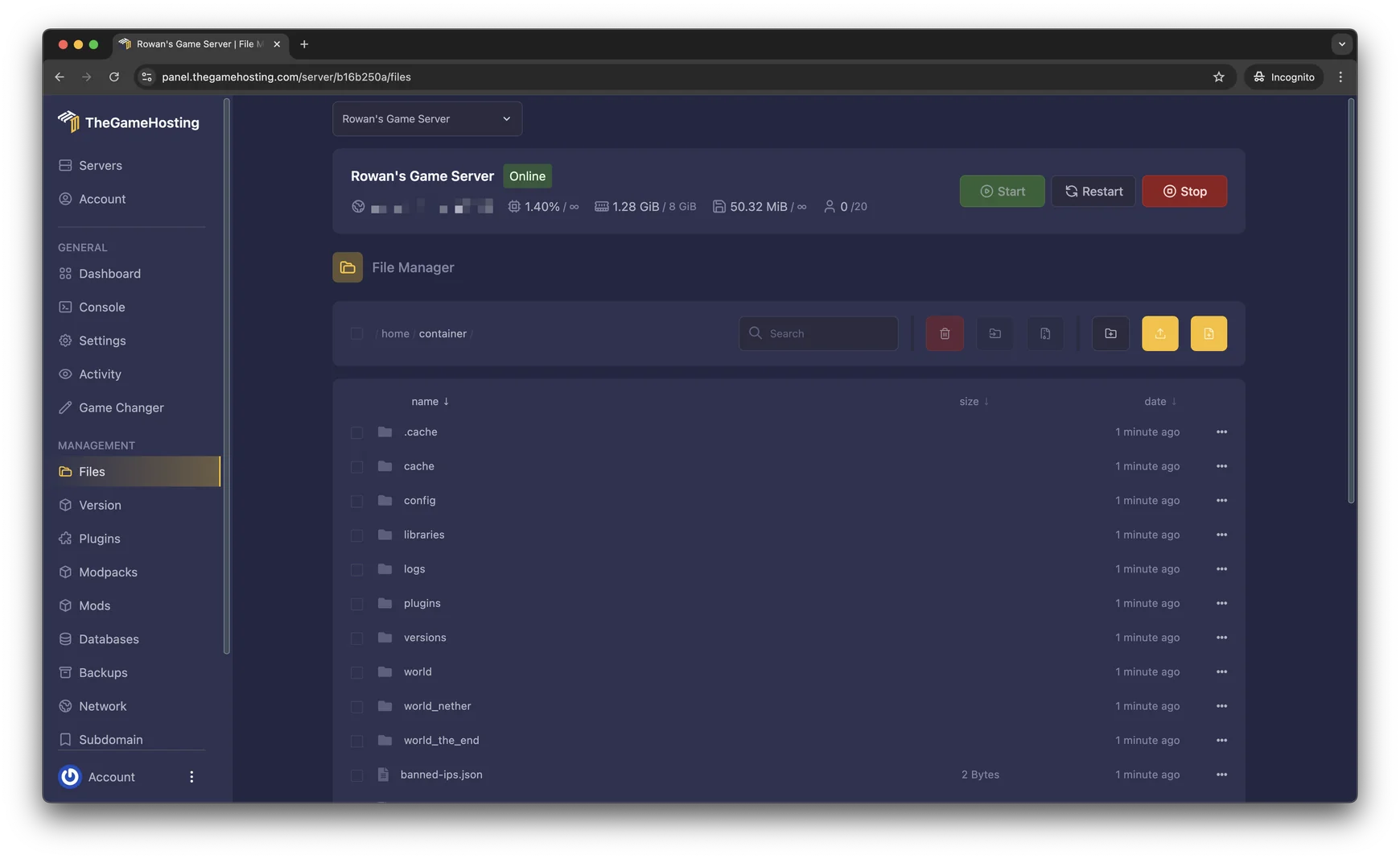
You also get backups, scheduled restarts and a choice of Dallas or Amsterdam. If you later want another game, the same plan can run it. Our about page says more about who runs the hardware.
FAQ
What port does a Palworld dedicated server use?
UDP port 8211 by default. Pocketpair's server guide says the port can be changed, and that you must be able to forward it on your router. You can change it with the -port= launch argument.
How many players can join a Palworld dedicated server?
Up to 32. The Steam store page says a dedicated server can allow up to 32 players, while online co-op is limited to 4. You can set the limit with ServerPlayerMaxNum or the -players= argument.
Do I need to own Palworld to run a dedicated server?
The server is a free tool on Steam called Palworld Dedicated Server, and you can install it from the Tools filter of your library or with SteamCMD. Your players need the game to join.
Can Xbox and PS5 players join my server?
Pocketpair's guide says dedicated and community servers are cross-play enabled by default for Steam, Xbox, PS5 and Mac. To join from Xbox or PS5, the server has to be deployed as a community server with the -publiclobby argument.
How much RAM does a Palworld server need?
8 GB is enough for most groups, and it is where our Palworld plans start. Full servers and large bases need more. Read how much RAM a Palworld server needs for the full breakdown.
Hosting for these games
 Palworld server hostingUp to 32 players · from $6.96 USD/month
 Rust server hostingWipes, Oxide and Carbon
Written by TheGameHosting Team, the people who run our servers in Dallas and Amsterdam and answer your tickets.
All posts