 TheGameHosting Team
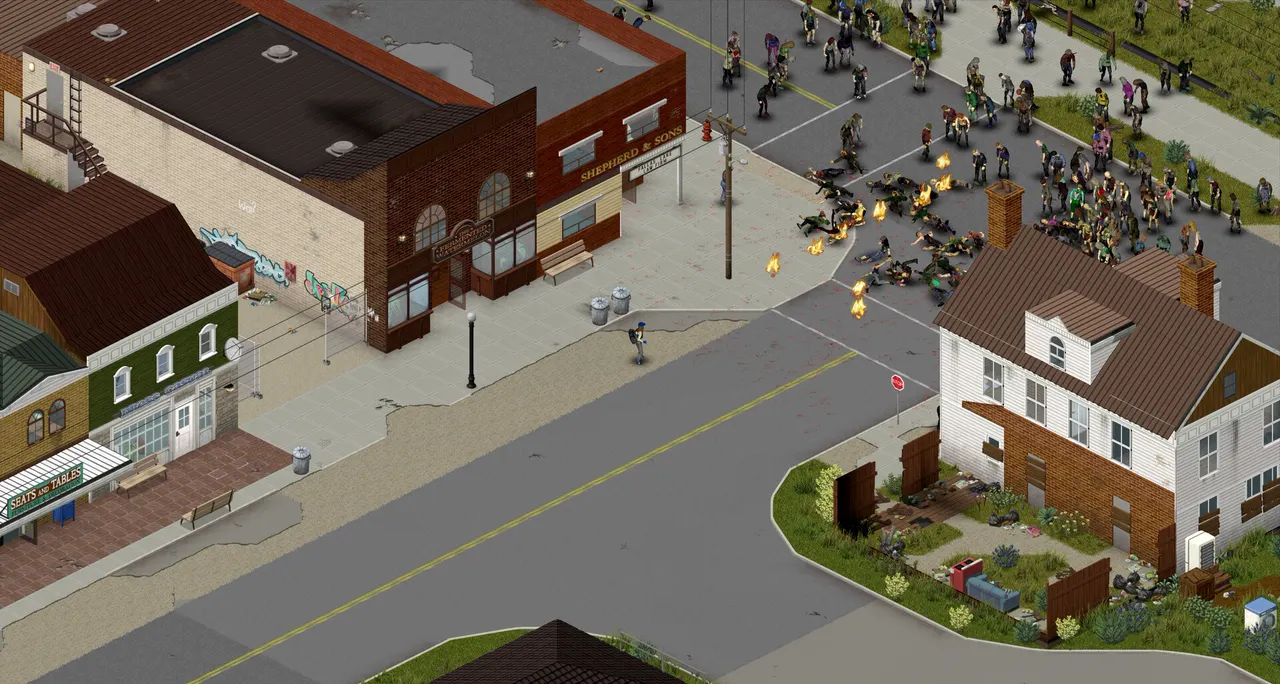
To add Steam Workshop mods to a Project Zomboid server, stop the server and open servertest.ini. Put each mod's Workshop ID on the WorkshopItems= line and its Mod ID on the Mods= line, with semicolons between entries, then restart. Players download the Workshop items when they connect.
The two IDs every mod has
This is where most people go wrong. Each Steam Workshop mod has two different identifiers, and the server needs both:
- The Workshop ID is the number at the end of the mod's Steam Workshop address. For example, in
.../filedetails/?id=514427485, the Workshop ID is514427485. It goes inWorkshopItems=. - The Mod ID is the name the game uses inside the mod. It is not always the same as the mod's visible name. Mod authors usually list it in the Workshop description, and it also appears in the mod's
mod.infofile. It goes inMods=.
Some Workshop items contain more than one mod, each with its own Mod ID. Read the description to see which ones you want to turn on.
Step by step: add a mod to your server
These steps follow the PZwiki Dedicated server and Server settings pages.
- Make a backup. In our panel, open Backups and create one. Mods can break a save, and a backup gives you a way back.
- Stop the server. Use the Stop button on the Console page.
- Find the IDs. Open the mod's Workshop page and note the Workshop ID from the address and the Mod ID from the description.
- Open the settings file. In the File Manager, open the server
.inifile. On a default install it isservertest.ini. - Add the Workshop ID to the
WorkshopItems=line. - Add the Mod ID to the
Mods=line. - Save the file and start the server.
Entries are separated by semicolons, with no spaces:
WorkshopItems=514427485;513111049
Mods=ModIDOne;ModIDTwo
The two example numbers come from the PZwiki. Replace ModIDOne and ModIDTwo with the real Mod IDs from your mods' pages.
The three lines that control mods
| Line | What goes there | Example |
|---|---|---|
WorkshopItems= | Workshop IDs, separated by semicolons | 514427485;513111049 |
Mods= | Mod IDs, separated by semicolons | ModIDOne;ModIDTwo |
Map= | Map folder names, with Muldraugh, KY last | MyMap;Muldraugh, KY |
How to add a map mod
Map mods need one extra step. Besides the Workshop ID and the Mod ID, you add the map's folder name to the Map= line. The map's page or description lists the folder name.
The default value is Map=Muldraugh, KY. The PZwiki Tech Support page says that on a dedicated server the Muldraugh, KY map should go at the end of the list, so the other maps take priority. The Build 33 notes add that when more than one map folder is listed, the Lots= lines in each map's map.info are ignored, so you may have to add Muldraugh, KY yourself:
Map=MyCoolMap;Muldraugh, KYAdd map mods before you start a new world, and take a backup before you change the map of a world that already exists.
Load order
Mods load in the order they appear in Mods=. Put a mod's required library or dependency before the mod that needs it. If two mods change the same thing, the later one wins.
A worked example
Say you want two mods and a map. After you find the IDs on their Workshop pages, the lines in servertest.ini look like this, with your own IDs in place of the placeholders:
WorkshopItems=111111111;222222222;333333333
Mods=FirstModID;SecondModID;MapModID
Map=MapFolderName;Muldraugh, KY
Here 333333333 is the Workshop ID of the map mod, MapModID is its Mod ID, and MapFolderName is the map folder from its description. The map goes before Muldraugh, KY. Save, start the server and read the console to check that every mod loaded.
Updating and removing mods
- When a mod updates, make sure the server and your players are on the same version. Restarting the server is the safe way to be sure it loads the current files.
- To remove a mod, delete its Mod ID from
Mods=and its Workshop ID fromWorkshopItems=, with the server stopped. A mod that added items or buildings may leave gaps in an existing world, so take a backup first and test. - To replace a mod, remove the old one and add the new one in the same edit, then restart and check the console.
Keep your mod list healthy
- Add mods one or two at a time, and start the server after each change. If the server breaks, you know which mod did it.
- Read the mod's page for the version it supports. Build 41 mods do not always work on Build 42. See Build 42 vs Build 41.
- Watch memory. Long lists and map mods use a lot of RAM. See Project Zomboid server requirements.
- Keep the list short for a first server. Every mod is something that can break after an update.
When players cannot join after you add mods
Most join errors after a mod change come from a mismatch between the server and the player:
- A different version of a mod. The server and every player must have the same version of each mod.
- A mod ID that is wrong or missing. Check each ID against the mod's page, and look for typos or a stray space.
- A "files do not match" or Lua checksum error. The server checks that players' game files match its own with the
DoLuaChecksumoption. Mods can trigger it when a file is out of date on one side. PZwiki notes that the check can give false positives on Linux servers. Switching it off lowers the server's protection against modified files, so only do it on a small private server.
Project Zomboid can't connect to server goes through these errors in order.
FAQ
What is the difference between the Workshop ID and the Mod ID?
The Workshop ID is the number in the mod's Steam Workshop address, and goes in WorkshopItems=. The Mod ID is the name the game uses inside the mod, and goes in Mods=. A server needs both for each mod.
How do I separate several mods in servertest.ini?
With semicolons and no spaces, for example WorkshopItems=514427485;513111049. Do the same on the Mods= line.
How do I add a map mod to my Project Zomboid server?
Add its Workshop ID and Mod ID like any other mod, and also put its map folder name on the Map= line. On a dedicated server, keep Muldraugh, KY at the end of the list.
Do players have to download the mods themselves?
No. According to the PZwiki, subscribed Workshop mods are downloaded automatically when players connect.
Do I need to restart the server after adding a mod?
Yes. Stop the server, edit the file, save and start it again. The mod list is read when the server starts.
Hosting for this game
Written by TheGameHosting Team, the people who run our servers in Dallas and Amsterdam and answer your tickets.
All posts