 TheGameHosting Team

To backup Palworld server files, save the world with /Save, stop the server and copy the world folder in Pal/Saved/SaveGames/0/ to a safe place, together with your settings in Pal/Saved/Config. On TheGameHosting you skip the copying: open Backups, press Create backup and the whole server is saved in one go.
Palworld worlds are big and they change all the time: bases, Pals, guilds and every player’s inventory live in the same save. One bad update, a corrupted file or a mod that misbehaves can cost your group weeks of play. A backup takes a minute and is the only real undo button you have.
What a Palworld server backup has to include
Everything that matters sits under the Pal/Saved folder of the dedicated server:
| Path | What it holds |
|---|---|
Pal/Saved/SaveGames/0/<world ID>/ | The world. A folder with a long random name that contains Level.sav, a Players folder with one file per character, and small files such as LevelMeta.sav and WorldOption.sav |
Pal/Saved/Config/LinuxServer/ (or WindowsServer) | Your settings: PalWorldSettings.ini and GameUserSettings.ini, which tells the server which world folder to load |
Heads-up: always copy the whole world folder. Level.sav and the files in Players belong together; mixing a world from one day with players from another is how characters lose their Pals or their guild.
Backup Palworld server files, step by step
This is the method for a server you run yourself. It works the same on Windows and Linux; only the slash in the path changes.
- Save the world. Log in as admin in game with
/AdminPassword yourpasswordand run/Save. The command is in Pocketpair’s official command list. - Warn the players and stop the server. Use
/Broadcast Backup_in_5_minutes, then/Shutdown 300or/DoExit. Never copy save files while the server is running: the copy can catch a half-written file. - Find the save folder. Go to the server’s install folder and open
Pal/Saved/SaveGames/0/. If you only have one world, there is one folder with a long name. - Copy the whole
Pal/Savedfolder to another disk or cloud folder. That catches the world and the settings at the same time. - Name the copy with the date, for example
palworld-2026-11-11-before-update, so you know which one to restore. - Start the server and join to check that everything loads.
To restore, stop the server, put the copied world folder back in SaveGames/0 with the same name (replacing the current one), check that DedicatedServerName in GameUserSettings.ini still points to it, and start the server again.
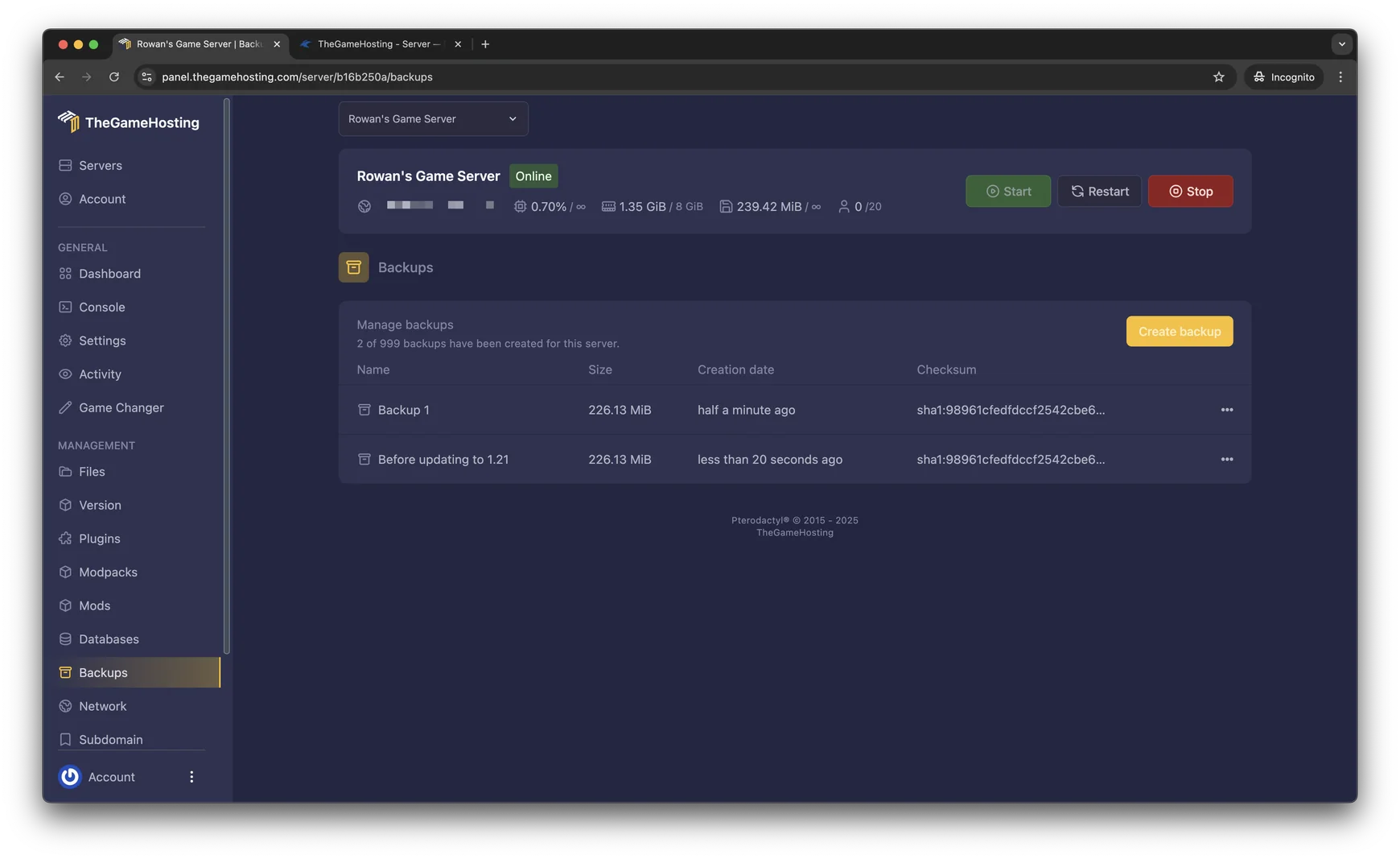
Back up a Palworld server in our panel
On a TheGameHosting server you don’t need to find folders or keep a second disk:
- Run
/Savein game as admin. - Open your server in the panel and press Stop on the Console page.
- Go to Backups → Create backup and give it a clear name, like “Before 1.0 patch”.
- Wait until it appears in the list with its size and date, then start the server.
Want a copy on your own PC too? Connect over sFTP and download the Pal/Saved folder. To roll back, open Backups, pick the copy and restore it. Restoring replaces the current files, so make a fresh backup first if you might want today’s world later.
Automatic Palworld backups
There are two ways to stop relying on memory:
- Panel Schedules. In Schedules, create a task that makes a backup every night at a quiet hour, and another that restarts the server right after. Palworld uses more memory the longer it runs, so the daily restart helps too.
- The game’s own backups. Pocketpair’s server configuration guide documents
bIsUseBackupSaveDatainPalWorldSettings.ini. When it is on, the server creates abackupfolder inside the save data folder and keeps 5 copies every 30 seconds, 6 every 10 minutes, 12 every hour and 7 every day. The guide warns that it increases disk load. Edit it as explained in our PalWorldSettings.ini guide.
The game’s backup folder lives on the same server as the world. It helps with a corrupted save, but it won’t help if the whole server is lost or wiped. Keep at least one panel backup or a download on your PC.
When to make a backup
- Before every game update. Patches can change the save format; our Palworld update guide starts with this step.
- Before you move or replace a world, for example when you move a co-op world to a dedicated server.
- Before a wipe. If you are starting over, keep the old world: see how to wipe a Palworld server.
- Before changing settings or mods, and before switching the plan to another game with the Game Changer.
Keep your Palworld world safe on TheGameHosting
A Palworld server on TheGameHosting gives you the Backups page, Schedules for nightly backups and restarts, the File Manager and sFTP, all from the browser. The server runs 24/7 in Dallas or Amsterdam on AMD 9950X/7950X3D CPUs with DDR5 and NVMe, so your world keeps going without your PC on. Palworld needs at least 8 GB of RAM, from $6.96 USD/month. See all server plans and use code FULL2026 for 15% off for life.
FAQ
Where are Palworld dedicated server saves stored?
In Pal/Saved/SaveGames/0/ inside the server folder. Each world is a folder with a long random name that holds Level.sav and a Players folder.
How do I restore a Palworld server backup?
Stop the server, put the saved world folder back in SaveGames/0 with its original name and start it again. In our panel, open Backups and restore the copy you want.
Does Palworld make backups by itself?
Only if you turn on bIsUseBackupSaveData in PalWorldSettings.ini. The server then keeps rolling copies in a backup folder next to the save data.
Can I back up a Palworld server while it is running?
Run /Save first and, for a manual copy, stop the server. Copying files while the server writes them can give you a broken save.
Hosting for these games

Written by TheGameHosting Team, the people who run our servers in Dallas and Amsterdam and answer your tickets.
All posts