 TheGameHosting Team
To update a Palworld dedicated server, back up the Pal/Saved folder, stop the server, run steamcmd +login anonymous +app_update 2394010 validate +quit and start it again. On the Steam client, find Palworld Dedicated Server under Tools and press Update. Then check the version with /Info.
The update takes a few minutes. The preparation is what protects your world, so this guide starts with the backup and ends with the checks to run once the server is back.
Before you update
- Back up the world. Copy the
Pal/Savedfolder to a safe place. It holds the save data underSaveGamesand your configuration underConfig. - Copy your settings file. Keep a separate copy of
PalWorldSettings.ini. - Warn your players and save with
/Save. The admin commands for that are listed in Pocketpair’s documentation. - Stop the server. Use
/Shutdownwith a delay and a message, so players see why it is going down.
The server can also keep its own backups. With bIsUseBackupSaveData enabled, the official guide says it keeps 5 saves every 30 seconds, 6 every 10 minutes, 12 every hour and 7 every day, at the cost of more disk load. Treat that as a safety net, not a replacement for your own copy.
Update with the Steam client
If you installed the server from the Tools filter of your Steam library, open Steam, find Palworld Dedicated Server and check whether it is up to date. If it is not, press Update. Then start the server as usual.
Update with SteamCMD
This works on Windows and Linux. The validate option checks the files and repairs anything missing or corrupted.
- Open a terminal in the folder where SteamCMD lives.
- Run the command below. It logs in anonymously and updates app 2394010.
- Wait for it to finish. If your server is not in SteamCMD’s default folder, add
+force_install_dir <path>so that it updates the right copy. - Start the server again:
PalServer.exeon Windows or./PalServer.shon Linux.
steamcmd +login anonymous +app_update 2394010 validate +quitPocketpair also distributes an official Docker image with example Compose files. If you use it, update by pulling the new image, and keep your save volume on fast storage. The official guide warns that Docker Desktop is not recommended because of the risk of save corruption.
Update on TheGameHosting
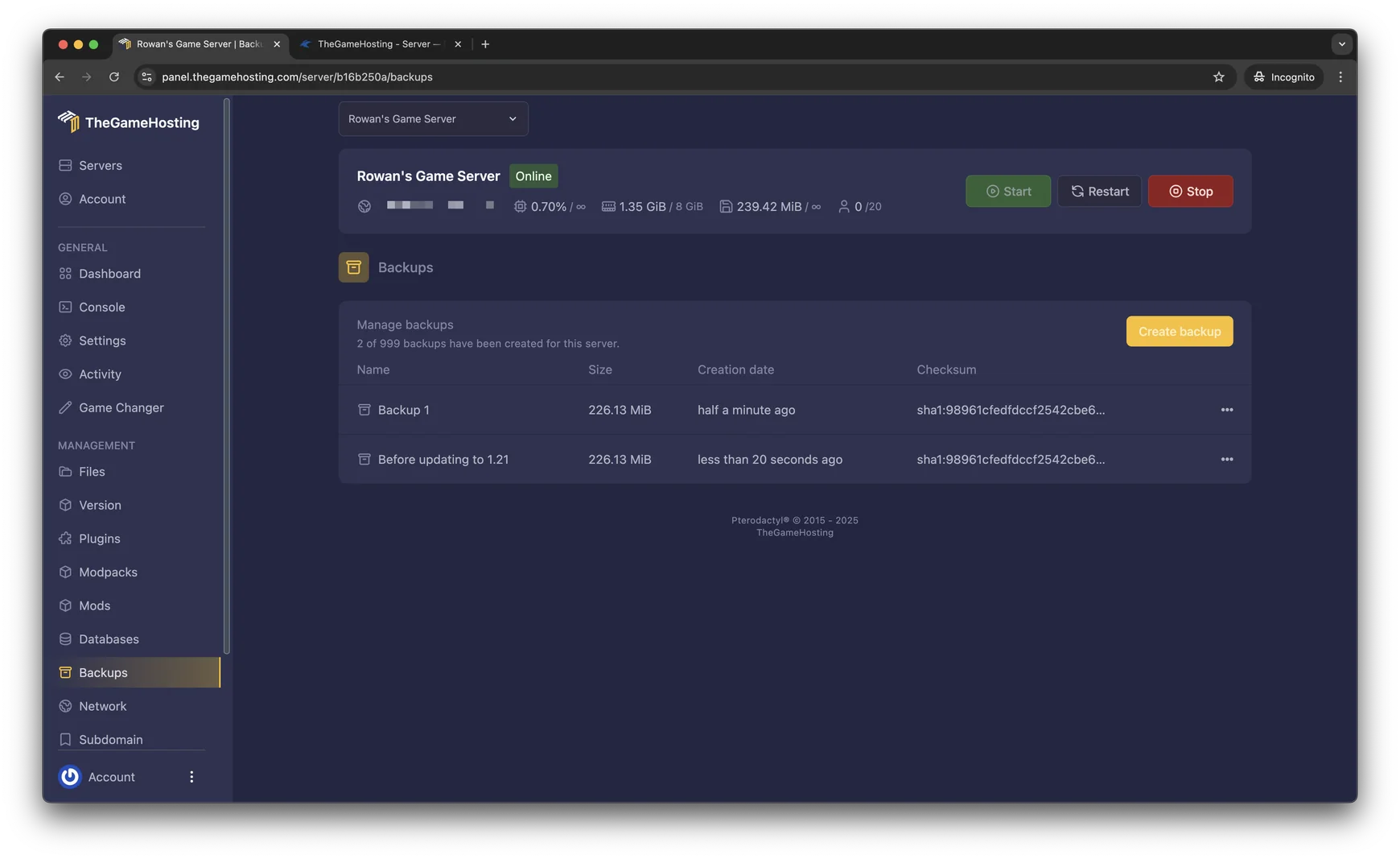
- Open your server in the panel and go to Backups. Click Create backup and name it, for example “Before the update”.
- Restart the server from the Console.
- Join the server and type
/Infoto see the version. If it is older than your game, tell us the version in live chat or a ticket and our team will check it with you.
Check the server after the update
- Read the console. Look for errors while the world loads.
- Check the version. Run
/Infoin game. If you use the REST API,GET /inforeturns the server version, name and world GUID. - Join with a test character and visit your main base. Check that everything is where you left it.
- Compare your settings with the defaults. New versions can add settings. Open
DefaultPalWorldSettings.ininext to your file and copy any new option you want into your own line. See PalWorldSettings.ini explained. - Tell your players to update their game too.
The update checklist
- Warn the players and save the world.
- Copy
Pal/SavedandPalWorldSettings.ini. - Stop the server cleanly.
- Update with SteamCMD or Steam.
- Start, check the console and run
/Info. - Compare your settings file with the new default.
- Tell the group to update their game.
Automate it, carefully
If you run the server on Linux, a small script keeps the order right: warn, back up, stop, update, start. Run it by hand at first, and only schedule it once you trust it. A script that updates blindly can break a world, so keep the backup step in it.
#!/bin/bash
cp -r ~/Steam/steamapps/common/PalServer/Pal/Saved ~/palworld-backup-$(date +%F-%H%M)
# stop the server here, for example with /Shutdown from the game or your process manager
steamcmd +login anonymous +app_update 2394010 validate +quit
cd ~/Steam/steamapps/common/PalServer && ./PalServer.sh
Adapt the paths to your install. The script is an example of the order of steps, not an official tool.
Read the patch notes first
A game update can add settings, change balance or fix server bugs. Read Pocketpair’s patch notes on Steam before you update a server that your group depends on, and decide whether to update the same evening or wait for a quiet moment. Players will need to update their game too, so choose a time when you can tell them.
If the update goes wrong
- The server will not start. Run the SteamCMD command again with
validate, and check that the path points to the right folder. - Players see a version mismatch. Their game and the server are on different versions. Update whichever one is behind.
- The save looks wrong. Stop the server, restore your backup of the
Savedfolder and start again. - You are setting up from scratch. Follow how to set up a Palworld dedicated server. If you are moving a save, read how to move a Palworld co-op world.
FAQ
What is the Steam app ID of the Palworld dedicated server?
2394010. Pocketpair's server guide uses it in the SteamCMD command steamcmd +login anonymous +app_update 2394010 validate +quit, which both installs and updates the server.
Do I need to back up before updating?
Yes. Copy the Pal/Saved folder and your PalWorldSettings.ini somewhere safe before you update, so you can restore them if a save goes wrong. Palworld can also keep rolling backups if bIsUseBackupSaveData is on.
Why can my friends not join after the game updated?
Their game and your server are on different versions. Update the server with SteamCMD or Steam, restart it and make sure everyone is on the current game version. You can check the server version with /Info in game.
Does updating delete my world?
No. The world lives in the Saved folder, which the update does not replace. Even so, back it up first, because mistakes with paths and folders are the most common way to lose data.
How often does Palworld need updates?
Whenever Pocketpair releases a patch. Pocketpair's server guide currently covers version 1.0.4. Check after each game patch, and read our guide on mods if you run any, because they may need updating as well.
Hosting for these games
 Palworld server hostingUp to 32 players · from $6.96 USD/month
 Rust server hostingWipes, Oxide and Carbon
Written by TheGameHosting Team, the people who run our servers in Dallas and Amsterdam and answer your tickets.
All posts