 TheGameHosting Team
To move a Palworld co-op world to a dedicated server, copy the world folder into the server’s Pal/Saved/SaveGames/0 folder, set DedicatedServerName to that folder’s name in GameUserSettings.ini, and start the server. The co-op host’s character does not carry over by itself, and fixing it needs a community tool.
Pocketpair does not publish transfer instructions, so this guide follows the README of the community project palworld-host-save-fix, which many server owners use. The project calls itself experimental, so the first rule is a backup.
Before you start
- Make a backup of your co-op world folder. Copy it to a safe place and do not touch the original.
- Have a working dedicated server that you can join. If you do not, start with how to set up a Palworld dedicated server.
- Know that the host is the problem. In co-op the host’s save uses the fixed ID
00000000000000000000000000000001, while a server identifies each player by a GUID of their account. - Install Python 3.10 or newer if you want to keep the host’s character. The tool also needs Palworld Save Tools, a separate project that converts
.savfiles to JSON and back.
Step 1: Copy the world to the server
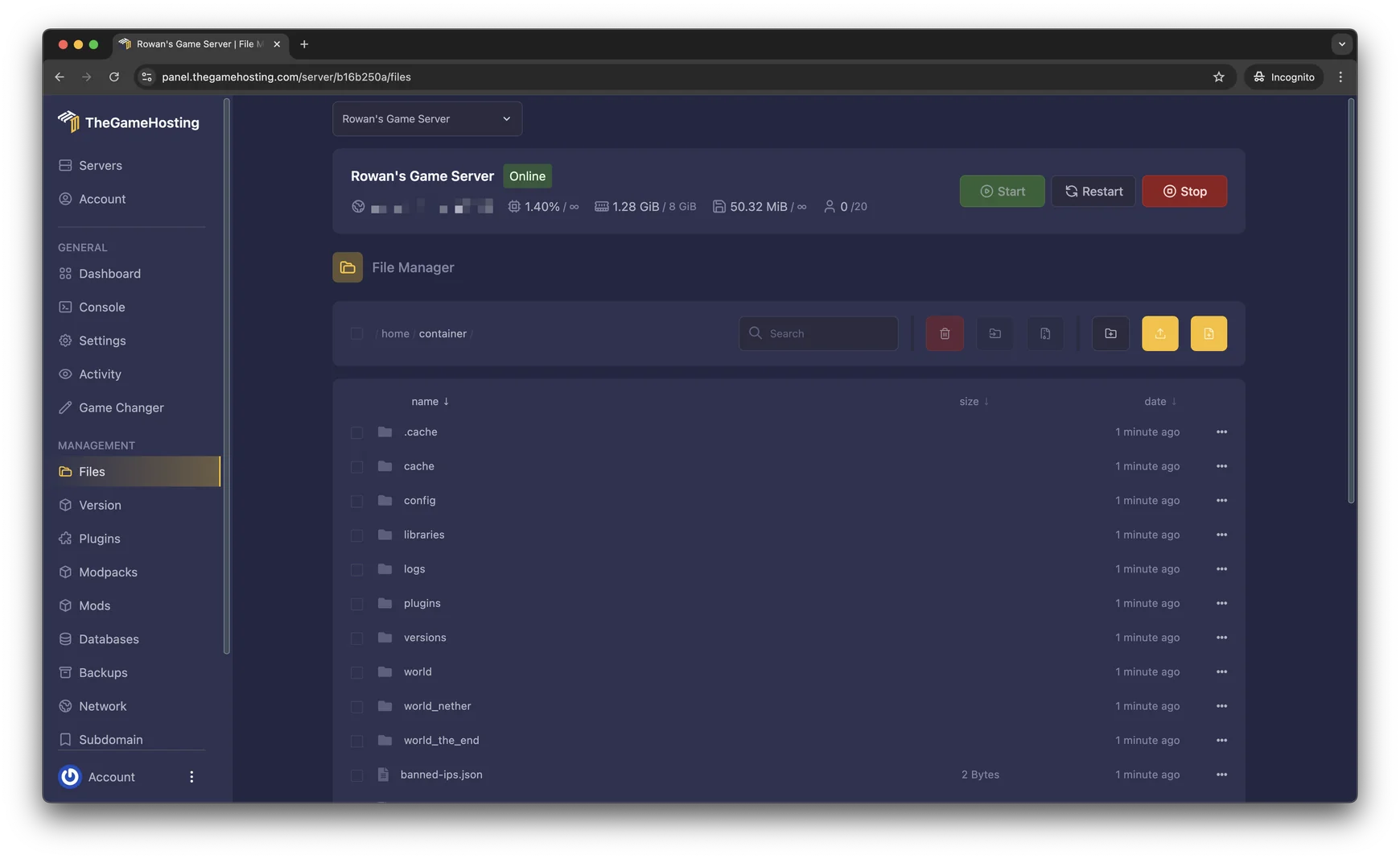
- Find your co-op world on your PC, in
C:\Users\<username>\AppData\Local\Pal\Saved\SaveGames\<random numbers>. The world is a folder with a long random name. - Stop the server. Copy that whole folder into
Pal/Saved/SaveGames/0on the dedicated server. On TheGameHosting you can do this in Files, or over SFTP if the folder is large. - Open
Pal/Saved/Config/LinuxServer/GameUserSettings.ini(or theWindowsServerfolder on Windows) and setDedicatedServerNameto the exact name of the world folder. - Optional: delete
WorldOption.savinside the world folder, so that yourPalWorldSettings.inirates apply. Players will choose their respawn point again, and nothing else is affected, according to the tool’s README. - Start the server and join with a character that does not belong to the co-op host, to check that the world is the one you want.
Step 2: Fix the host character
If the host does not mind starting a new character, skip this section: the rest of the world stays intact. To keep the old character, follow the README’s steps:
- Have the co-op host join the server and create a new character. A new
.savfile appears inPal/Saved/SaveGames/0/<your world>/Players. Its file name is the host’s new GUID. - Shut the server down and copy the entire world folder to a temporary folder on your PC.
- Back up that folder. The tool is experimental and has known bugs.
- Run the script with the folder, the new GUID and the old GUID
00000000000000000000000000000001, with the guild fix set toFalse. - Copy the fixed folder back to the server and move the old one somewhere else. Start the server and have the host join.
python fix_host_save.py "<path to your world folder>" <new_guid> 00000000000000000000000000000001 FalseThe README lists two known problems. Guild membership can break, and the workaround is to transfer guild ownership to another character before moving a co-op save. And if your Pals will not attack or work after five minutes, each player should drop every Pal on the ground with the Drop button in the party menu, then pick them up again, which registers them with the correct guild.
Moving between Windows and Linux servers
The same README says that save files differ by server type: co-op, Windows dedicated and Linux dedicated all generate player GUIDs differently. Moving a Windows dedicated save to a Linux one, or the other way, makes every player create a new character. Each player then needs the fix, with the guild fix set to True. Plan for that if your old server and new server run different systems, and ask your host which one it runs.
How to find a player’s GUID
- Set an
AdminPasswordin the old server’sPalWorldSettings.iniand join. - Type
/AdminPassword yourpassword, then/ShowPlayersin the chat. The commands are in how to become admin on a Palworld server. - Write down each player’s
playeruid. - Convert it to the 8-character hexadecimal prefix of the GUID, then find the
.savfile that starts with it.
Checklist after the move
- Join with more than one player and walk to your main base. Check that buildings, storage and Palbox contents are where you left them.
- Watch your Pals for five minutes. If they will not work or fight, use the Drop and pick-up fix from the README.
- Check your rates. If you deleted
WorldOption.sav, the values inPalWorldSettings.ininow apply. Review them in PalWorldSettings.ini explained. - Make a backup of the working world before anyone plays for hours. Keep your original co-op folder untouched.
If something goes wrong
Stop the server, move the broken world folder out of SaveGames/0 and copy your untouched backup in again. Because you never edited the original, you can repeat the process as many times as you need. If the world loads but one character is missing, check the Players folder for a new .sav file and confirm that the GUIDs you passed to the script are the right ones.
Should you move at all?
If your group is two to four friends who play at the same time, co-op may be enough. A dedicated server pays off when you want the world online while the host is away or more than four players. Palworld co-op vs dedicated server compares both.
FAQ
Can I move my Palworld co-op world to a dedicated server?
Yes. You copy the world folder to the server and point the server at it. The catch is the host character: in co-op the host is stored under a fixed ID, so on the server the host usually has to create a new character unless you fix it with a community tool.
Why does my character reset after I move the world?
The community README explains that players are matched to their save by a GUID, and different kinds of server generate GUIDs differently. The server does not recognise the old GUID, so it asks the player to create a new character.
Is there an official tool to move a Palworld save?
Pocketpair's server guide does not describe a transfer. The tool most guides use, palworld-host-save-fix, is a community project that calls itself experimental and warns about data loss, so always keep a backup.
Do my friends keep their characters?
In a co-op to dedicated move, only the host is affected, according to the tool's README. Moving a save between a Windows server and a Linux server is different: every player gets a new GUID and each one has to be fixed.
Does moving the world change my server rates?
It can. A world keeps the options it was created with in WorldOption.sav. The community guide says to delete that file so that PalWorldSettings.ini applies. Players will have to choose their respawn point again. See our settings guide.
Hosting for these games
 Palworld server hostingUp to 32 players · from $6.96 USD/month
 Rust server hostingWipes, Oxide and Carbon
Written by TheGameHosting Team, the people who run our servers in Dallas and Amsterdam and answer your tickets.
All posts