 TheGameHosting Team
To make a Minecraft Java server, install the Java version your Minecraft release needs, download server.jar from Minecraft.net, run it once, change eula=false to eula=true, and start it again. Then join with localhost. Friends outside your home network need TCP port 25565 forwarded to your PC.
That is the whole job on your own computer, and the steps below walk through it. If you would rather not leave a PC on all day or touch router settings, there is a shorter route at the end of the guide.
What you need before you start
- A computer that stays on while people play. Windows, macOS and Linux all work.
- The right Java version. It depends on the Minecraft version you want, and the table below lists it.
- At least 2 GB of free RAM for a small world. The Minecraft Wiki calls
-Xmx2Gmore than enough for a home server with five players on default settings. - A Minecraft Java Edition account for every player when online mode is on.
Check the Java requirement before you download anything. As of November 2026, these are the minimums listed by the Minecraft Wiki and the PaperMC docs:
| Minecraft version | Java you need |
|---|---|
| 26.1 and newer | Java 25 |
| 1.20.5 to 1.21.11 | Java 21 |
| 1.18 to 1.20.4 | Java 17 |
| 1.17 to 1.17.1 | Java 16 |
Older Minecraft versions can also run on newer Java, so the newest Java your release supports is a safe default. The latest Minecraft release at the time of writing is 26.3.
Make a Minecraft Java server on your own PC
You will use one command to start the server, both the first time and every time after:
java -Xms2G -Xmx2G -jar server.jar --nogui- Install Java. Get a current OpenJDK build and check it with
java -version. A server only needs the runtime (JRE), not the full JDK. - Create a folder just for the server, for example
minecraft-server. The server writes the world, logs and settings next to the JAR, so keep it on its own. - Download
server.jarfrom the official Minecraft server page and put it in that folder. - Run it once from a terminal opened in that folder, using the command above. It starts the server with 2 GB of memory and no extra window.
- Accept the EULA. The first run creates
eula.txtand stops. Open it, changeeula=falsetoeula=trueand save. Without this the server shuts down right away. - Start the server again with the same command. When the console prints
Done, it is ready. - Join it. In Minecraft Java Edition choose Multiplayer, Direct Connection, and type
localhostif you play on the same PC.
Type stop in the console to shut the server down, so the world is saved before the process ends.
Let your friends join
People on your Wi-Fi can connect with your PC's local address, which looks like 192.168.x.x. Anyone else needs three things in place:
- Allow Java through your firewall. On Windows, accept the prompt that appears the first time the server starts.
- Forward TCP port 25565 in your router to the local address of the PC that runs the server. Every router names the menu differently: look for “port forwarding” or “virtual server”.
- Give them your public IP address, followed by the port if you changed it. Home IP addresses often change, so it can stop working next week.
If friends see Connection timed out after all that, the port is not reaching your PC. Our connection timed out troubleshooting guide explains how to tell a firewall problem from a router problem.
Why a home server stops being fun
- It only exists while your PC is on. Turn the computer off and your friends lose the world.
- You play and host on one machine. Minecraft and the server compete for the same CPU and RAM.
- Your home connection carries everyone. Upload speed and a changing IP address limit who can join and how smoothly.
- You are the sysadmin. Updates, backups and port forwarding are all yours.
When you want a world that is always online, a hosted server removes all four.
Make a Minecraft Java server on TheGameHosting
Hosting your server with us follows the same steps in a different place. You choose a plan and the panel handles the rest, so there is no port forwarding and no Java install.
- Open Minecraft Java server hosting, pick the plan that fits your group and check out. Our plans page lists all nine sizes, from 2 GB to 64 GB.
- Open your server in the panel and choose Version in the side menu. This is the Version Changer, which lists 28+ server platforms, including Vanilla, Paper, Purpur, Fabric, Forge and NeoForge. You can also upload your own JAR.
- Pick the Minecraft version, click Install, then press Start at the top of the server page and watch the Console until it finishes loading.
- Copy the server address from the top of the server page and send it to your friends.
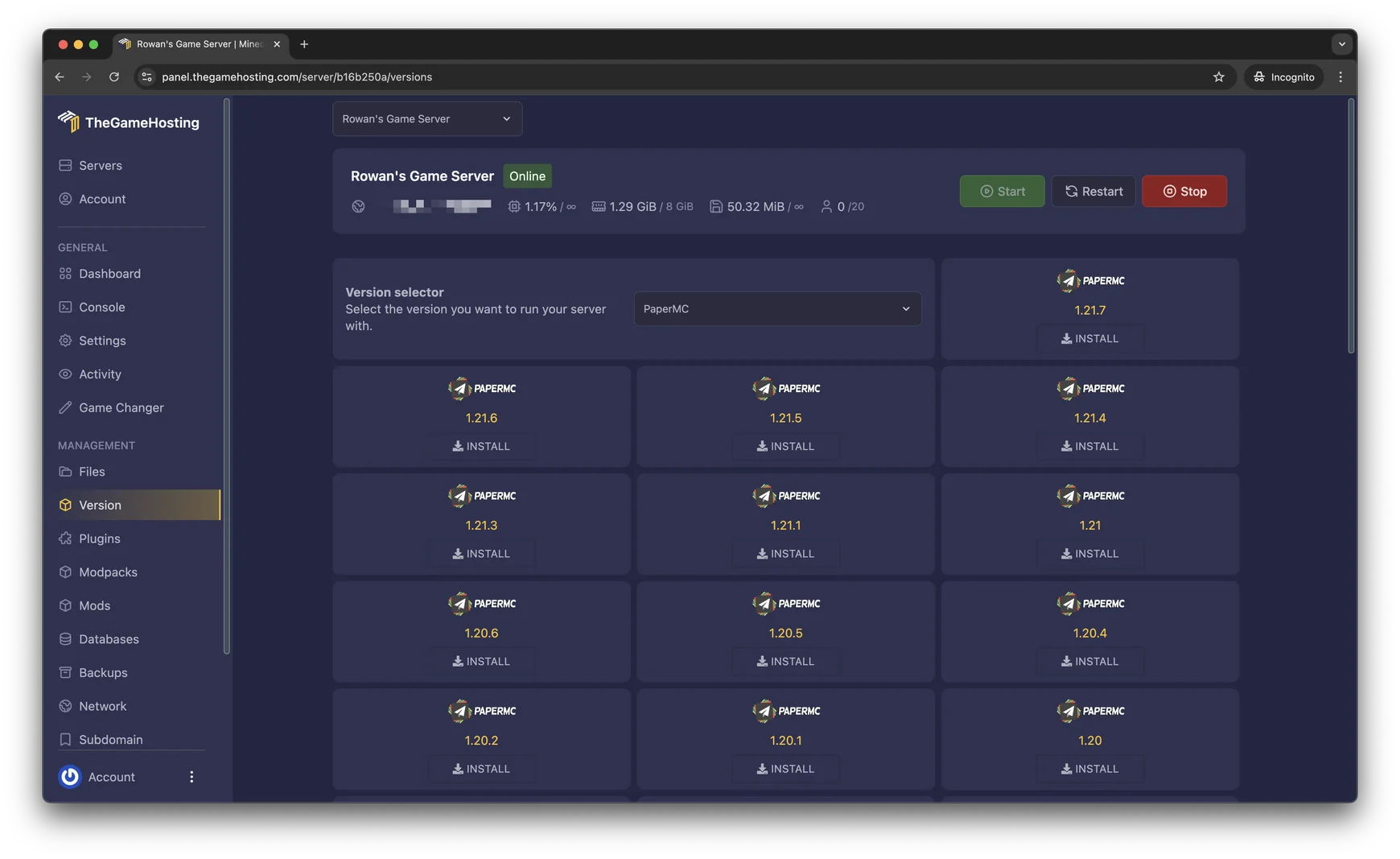
The panel also has a backup system for the moments before big changes, a file manager where you edit server.properties, and a choice of Dallas or Amsterdam. If you later want another game, the same plan can run it.
Choose the server software
The server.jar from Mojang is the vanilla server: no plugins and no mods. Most people pick something else once the world is running:
- Paper adds performance work and runs plugins such as permissions and claims. It is the usual choice for survival and community servers.
- Fabric, Forge or NeoForge load mods, which change the game itself and need the same mods on every player's computer.
- Purpur is built on Paper and adds many more settings.
Not sure which one fits? Read Paper, Purpur or Fabric: which server software to run, then follow how to install plugins on a Paper server. If you prefer mods, pick Fabric, Forge or NeoForge from the Version Changer.
Settings worth changing in server.properties
Open server.properties with a plain text editor, not a word processor, and restart the server after you save. These keys matter most at the start, with the defaults from the Minecraft Wiki:
| Setting | Default | What it does |
|---|---|---|
server-port | 25565 | The TCP port the server listens on. Leave it unless another program uses it. |
max-players | 20 | How many players can be online at once. |
view-distance | 10 | Chunks sent to each player. Lower it if the server lags. |
simulation-distance | 10 | How far from a player mobs and crops keep updating. |
online-mode | true | Checks every player against a Minecraft account. Keep it on for an internet server. |
motd | A Minecraft Server | The line shown under your server name in the server list. |
The whitelist, which keeps strangers out of a private server, is off until you turn it on with whitelist on in the console. Once the world has players, read the RAM guide before you pick a plan size.
FAQ
Can I make a Minecraft Java server for free?
Yes. Mojang distributes the server software free of charge, and you can run it on your own computer. The cost is that the server only runs while your PC is on, your home connection carries every player, and friends outside your network need port forwarding.
What port does a Minecraft Java server use?
TCP port 25565 by default. It is set by server-port in server.properties. If the server sits behind a home router, forward that TCP port to the computer that runs it.
Do my friends need to buy Minecraft to join?
With online-mode=true, which is the default, players need a Minecraft Java Edition account. Turning online mode off lets anyone connect with any name, which the Minecraft Wiki warns against for servers that are reachable from the internet.
How much RAM does a Minecraft server need?
A small vanilla server for a few friends runs on 2 GB, and plugin or modded servers need more. Our guide to how much RAM a Minecraft server needs breaks it down by player count and server type.
Is it better to host a Minecraft server at home or with a hosting company?
A home server is fine for an evening with two or three friends. For a world that stays online, a hosted server avoids router settings, keeps running when your PC is off and does not slow your own game down.
Hosting for these games
 Minecraft Java hostingPaper, Purpur, Fabric, Forge and more
 Minecraft Bedrock hostingPhones, consoles and Windows
Written by TheGameHosting Team, the people who run our servers in Dallas and Amsterdam and answer your tickets.
All posts