 TheGameHosting Team
To update a Minecraft server without losing your world, back up the world and plugin folders, check that your plugins or mods support the new version, stop the server, swap the server JAR for the new one and start it again. Keep the backup until you have played on the new version. On TheGameHosting, the Version Changer swaps the JAR for you.
The update itself takes minutes. What protects your world is the preparation, so the guide starts there and ends with how to roll back if something goes wrong.
Before you update
- Make a backup. The Paper docs call it the most important step and the one that people skip most often. Back up the world folders, the server configuration files, and the plugin configuration files and JARs.
- Check your plugins or mods. Open each page and confirm that a build exists for the new Minecraft version. If one does not, wait. Our guides on plugins and mods explain where to find them.
- Check Java. New Minecraft releases can raise the minimum Java version. Minecraft 1.20.5 to 1.21.11 needs Java 21, and 26.1 or newer needs Java 25. The latest release at the time of writing is 26.3.
- Warn your players. They need to update their game to the same version, or use ViaVersion if you allow other versions to connect.
On a Paper server, that means the world folders, configuration files such as server.properties, and the plugins folder, which holds both the plugin JARs and their settings. Keep several backups from different times rather than one. If a problem only shows up a day later, an older backup lets you step back further.
Update from the TheGameHosting panel
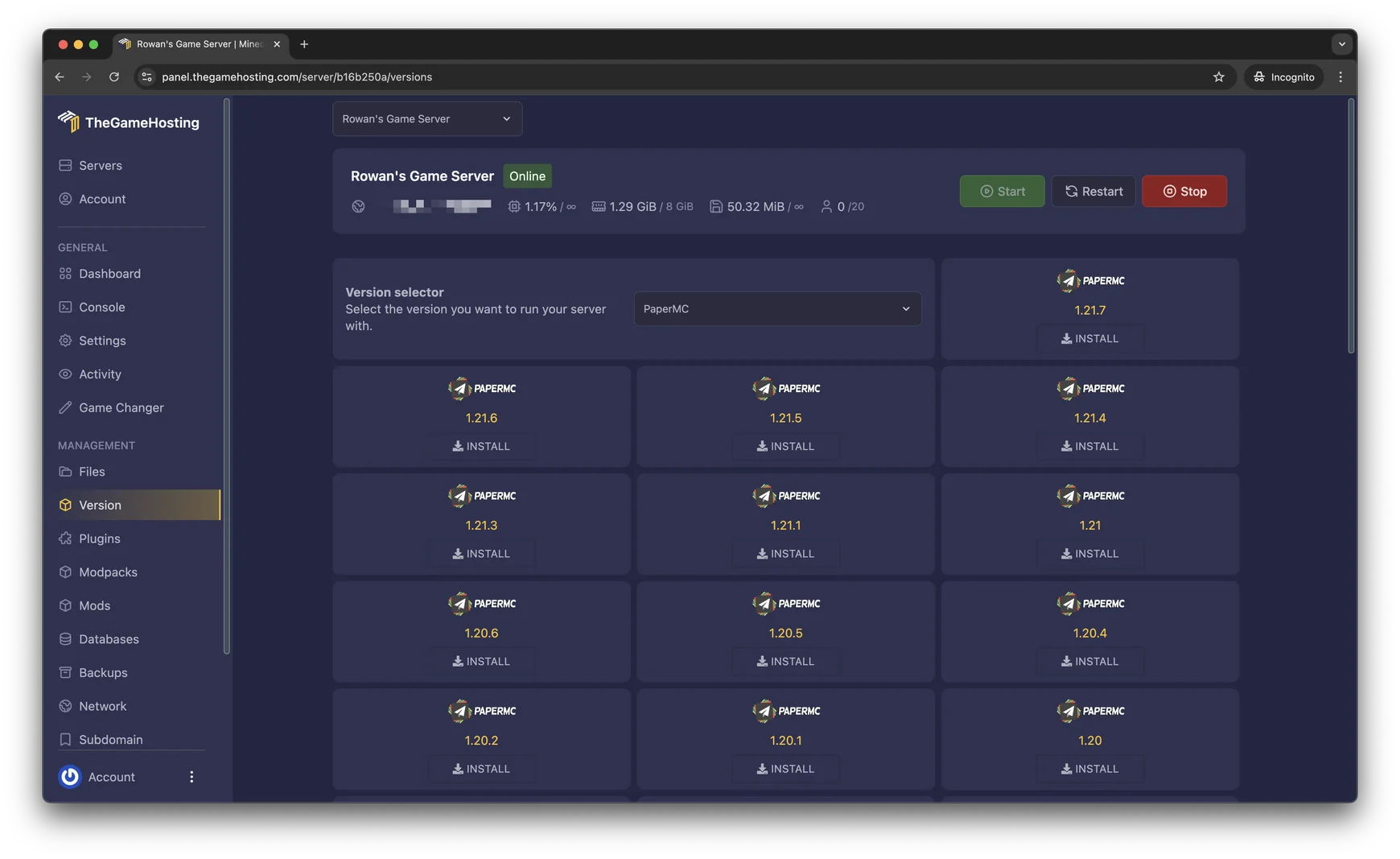
The Version Changer in the panel replaces the server software with the version you choose. Your backup is the safety net if the world or a plugin does not like the new version.
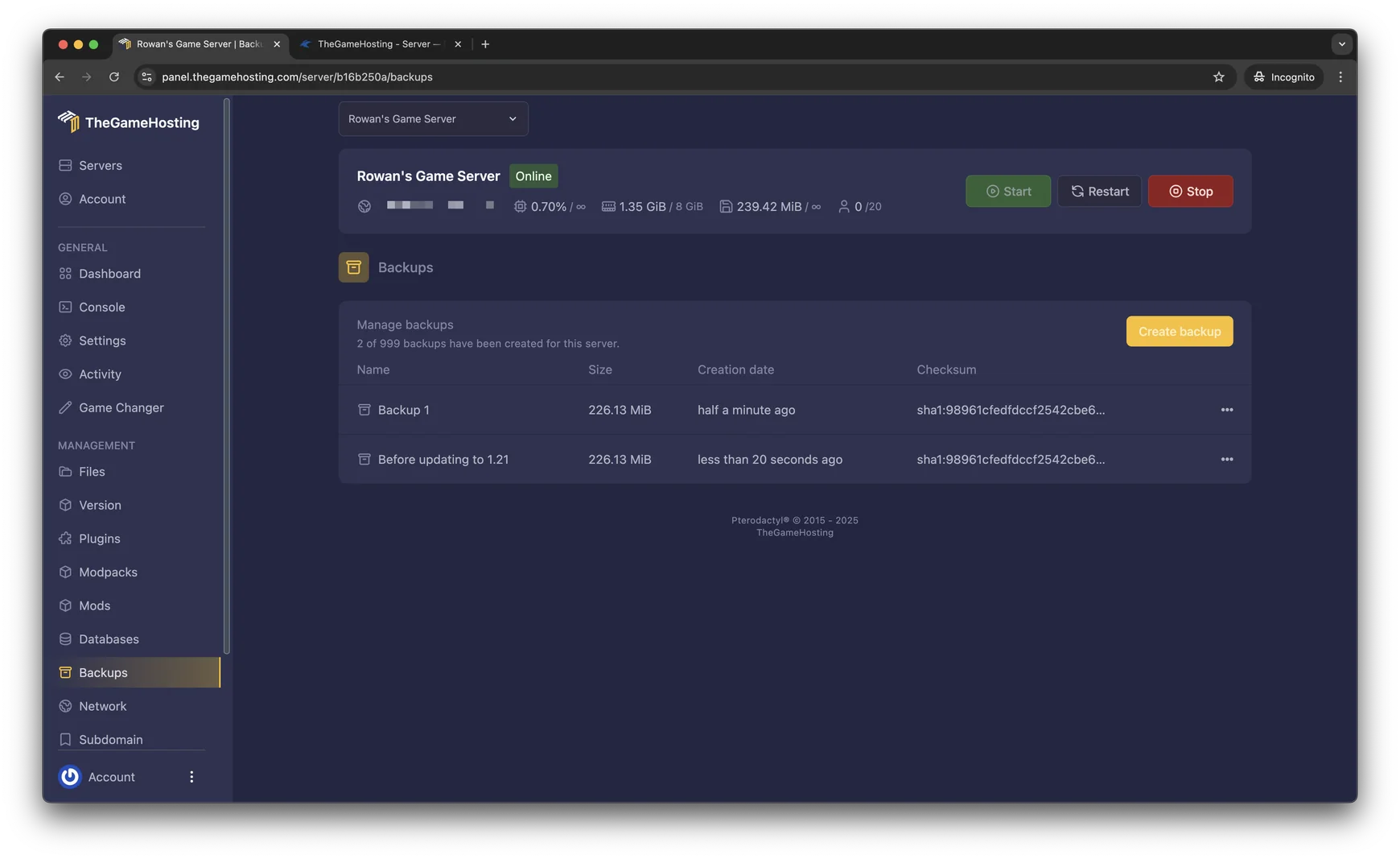
- Open Backups and click Create backup. Give it a name such as “Before updating to 26.3” so you can find it later.
- Update your plugins or mods first if they need new builds. For plugins, use the
plugins/updatefolder described below. - Choose Version in the side menu, pick your platform (Paper, Purpur, Fabric or another) and select the new Minecraft version.
- Click Install, then start the server.
- Watch the Console during the first start. Any plugin or mod conflicts show up there.
- Join the server and check your world, your builds and your plugins before you tell your players it is ready.
Update a Paper server by hand
Paper has two safe tricks in its update guide. The first one is the update folder, which updates plugins with a single restart:
- Create a folder named
updateinsideplugins. - Download the newer JAR for each plugin and put it there. Leave the plugins outside that folder untouched.
- Restart the server. Paper applies the new JARs, and you do not have to restart before updating Paper itself.
The second is the server update itself:
- Download the new Paper JAR from the PaperMC downloads page.
- Stop the server.
- Rename the new file to match the name in your start command, or change the start command to the new name.
- Replace the old JAR and start the server. Watch the startup log for plugin conflicts.
stopUpdate a vanilla or modded server
For a vanilla server, download the new server.jar from the official Minecraft server page, stop the server, replace the old file and start it again. Do the same Java check as above.
A NeoForge server updates by running the installer for the new version in the same way as the first install. The NeoForged documentation warns you to back up your world before you update NeoForge or your mods. With Fabric or Forge, install the new loader version and then replace each mod with its build for the new Minecraft version. If you use a modpack, wait for the pack author to publish a matching update, and update the server and your players together.
Should you update at all?
Not every new version is worth the move on day one. Plugins and mods often take days or weeks to catch up. If your server runs well, wait until everything you use supports the new version.
If your players use newer clients than your server, a plugin like ViaVersion can let them join the older server. Switching platforms at the same time is a second change to your world, so do one thing at a time. If you are still choosing, our Paper, Purpur or Fabric comparison helps.
If the update goes wrong
- Stop the server.
- Restore the backup you made before the update. In the panel, open Backups and restore it.
- Put the old server JAR back, or pick the old version in the Version Changer.
- Start the server and check the world.
- Find the cause in
logs/latest.log, which is usually a plugin or mod that does not support the new version, then try again when it does.
Do not try to downgrade a world by installing an older server on top of it. A world that a newer version saved can break on an older one, and the backup is the only reliable way back.
FAQ
Can I go back to an older Minecraft version after updating?
Not safely. Once a newer version has loaded and saved your world, the older version cannot be trusted to read it. That is why the backup comes first: to go back you restore the backup and put the old server JAR in place.
How often should I update my Minecraft server?
PaperMC recommends updating Paper at least once a week, because new builds bring fixes. A new Minecraft version is a bigger step, so wait until your plugins or mods support it.
Why can my friends not join after I update?
Their game version has to match the server, unless you use a plugin such as ViaVersion that lets newer clients join an older server. A mismatch shows messages such as “Outdated client” or “Outdated server”. If players cannot reach the server at all, see our connection timed out guide.
Do I have to update my plugins when I update the server?
Check them first. A plugin that does not support the new Minecraft version can fail to load or break features. PaperMC suggests updating plugins and Paper in the same restart by using the plugins update folder.
Is it safe to update automatically?
PaperMC advises against automatic updates because a new build can conflict with plugins in ways you do not know about. Be present during an update and read the startup log afterwards.
Hosting for these games
 Minecraft Java hostingPaper, Purpur, Fabric, Forge and more
 Minecraft Bedrock hostingPhones, consoles and Windows
Written by TheGameHosting Team, the people who run our servers in Dallas and Amsterdam and answer your tickets.
All posts