 TheGameHosting Team
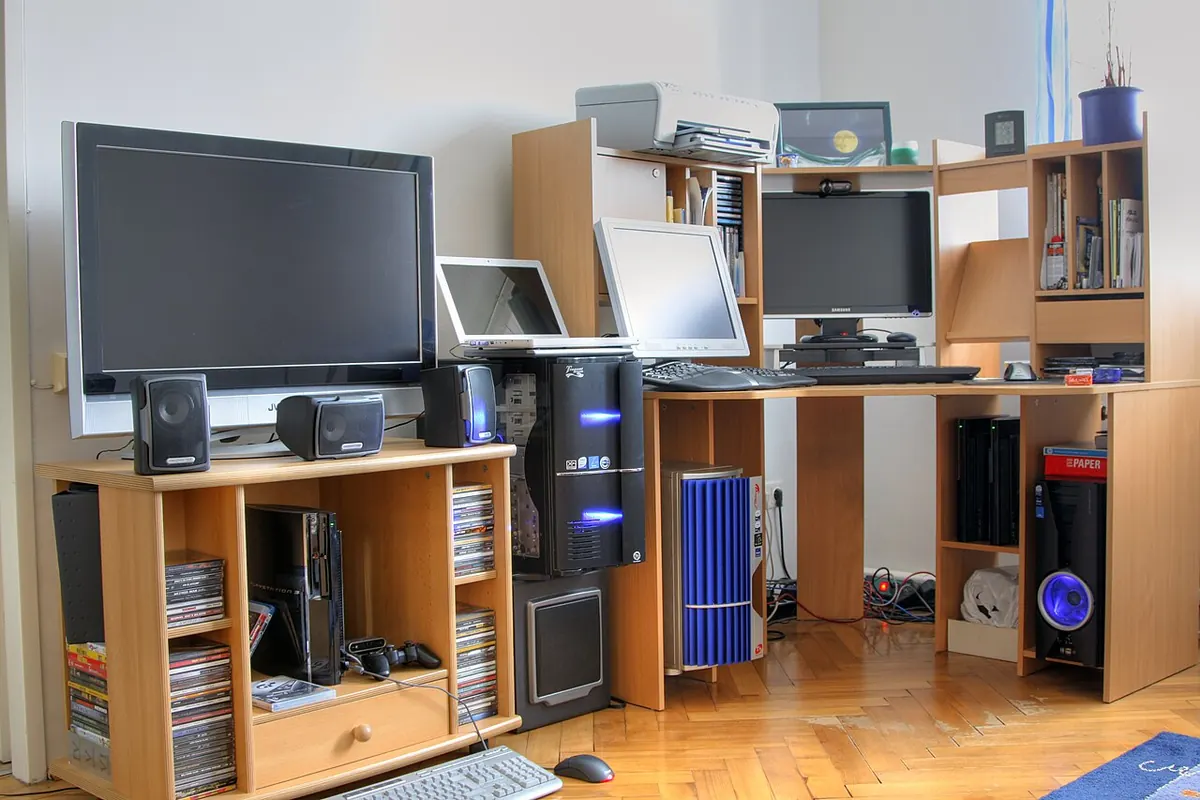

Yes, you can host a Minecraft server on your PC. You need the Java version your Minecraft version asks for, 2 to 4 GB of RAM to spare, a wired connection and TCP port 25565 forwarded on your router. It works well for a few friends who play while you are online. When people want to join at any hour, or your own game starts to stutter, a hosted server is the better deal.
Below: what your computer needs, whether an old PC is enough, and home hosting against a paid server. We sell hosting, so we tried to be fair to the home option: for some groups it is the right answer.
What you need to host a Minecraft server on your PC
The Minecraft Wiki server tutorial says a Survival server with 4 to 8 players runs on most modern hardware. This is what that means in practice:
| Part | What you need | Why it matters |
|---|---|---|
| Java | The version your Minecraft version requires (table below) | The launcher brings Java for the game; the server runs on a Java you install yourself |
| RAM | At least 2 GB for a small server, 4 GB for a bigger one | On top of what Windows and your own game use |
| CPU | Strong single-core speed; a budget Intel 8th gen or Ryzen 2000 is enough for small servers | The server does most of its work on one core |
| Storage | At least 5 GB of space, on an SSD if you can | The world grows as players explore |
| Network | Ethernet cable, enough upload | Every player receives world data from your upload; the wiki advises against Wi-Fi |
| Port | TCP 25565 forwarded on your router | It is the default server-port |
| Graphics card | Not needed | The server draws nothing on screen |
Which Java version you need
| Minecraft version | Java version |
|---|---|
| 26.1 and later | Java 25 |
| 1.20.5 to 1.21.11 | Java 21 |
| 1.18 to 1.20.4 | Java 17 |
The wiki also notes that older Minecraft versions run on newer Java, so a 1.16 server starts on Java 17. The reverse fails: a server jar on a Java that is too old stops at once with UnsupportedClassVersionError. It is the most common first error at home.
RAM when you play on the same PC
Most people at home run the server and the game on one computer. The current Java Edition requirements listed on the Minecraft Wiki are 8 GB of RAM as a minimum with a dedicated graphics card, 12 GB with integrated graphics and 16 GB recommended. That is for the game alone. On an 8 GB machine, little is left for a server. With 16 GB you can usually give 2 to 4 GB to a small vanilla or Paper world. To size it properly, read how much RAM a Minecraft server needs.
The home setup in six steps
- Install the Java version from the table and check it with
java -version. - Create a folder for the server and put the server jar in it: the official
server.jarfrom minecraft.net, or a Paper jar. - Run it once. It creates
eula.txtand stops. - Open
eula.txt, changeeula=falsetoeula=trueand start it again. The world is generated. - Allow Java through the firewall and forward TCP 25565 on your router to your PC’s internal IP.
- Give your friends your public IP. On the same PC, connect to
localhost.
The start command with 1 GB to begin with and a 2 GB limit:
java -Xms1G -Xmx2G -jar server.jar --noguiEvery step in detail, plus the server.properties settings worth changing is in our guide on how to make a Minecraft Java server. The router part, including what to do when it does not work, has its own guide: how to port forward a Minecraft server. Bedrock uses different server software; see how to make a Minecraft Bedrock server.
Can an old PC run a Minecraft server?
Often, yes: a server needs no graphics card. Check these points first:
- A 64-bit operating system. Minecraft 26.1 and later need Java 25, and Java 25 has no 32-bit x86 build: OpenJDK removed that port in JDK 25, after dropping 32-bit Windows in JDK 24. On a 32-bit system you are stuck with old Minecraft versions.
- 4 GB of RAM or more in total. The wiki’s server requirements page asks for at least 4 GB for the server and the operating system together, and says Windows generally uses more RAM than Linux.
- A CPU that is not ancient. The tutorial names a budget Intel 8th gen or Ryzen 2000 as good enough for small servers. Older chips can run a small world, but new chunks load slowly.
- An SSD. A hard drive works, but saving and loading chunks is slower. The wiki lists an SSD in its best-case column.
- A cable to the router. The wiki recommends against Wi-Fi for a stable connection.
- Sleep turned off. If the PC sleeps or hibernates, the server disappears for everyone.
Electricity is not zero. As an example, a PC that draws 100 W all month uses 100 W × 24 h × 30 days = 72 kWh. Multiply that by the price per kWh on your power bill to see what running it all the time costs you.
Our verdict: an old 64-bit PC with 4 GB or more, an SSD and a cable makes a fine small server for vanilla or Paper with a few friends. It is not the machine for a large modpack or a public server.
Your PC vs hosting: pros and cons
| Factor | Your PC | Hosting |
|---|---|---|
| Monthly cost | No hosting bill; you pay the electricity and the wear | From $1.90 USD/month for 2 GB on TheGameHosting |
| When it is online | Only while your PC is on and awake | 24/7, with your PC off |
| Your own game | Server and game share the same CPU and RAM | Your PC only runs the game |
| Your home IP | Everyone who joins knows your home IP address | Players see the server’s IP, not yours |
| DDoS | An attack hits your home connection with nothing in front | DDoS protection in front of the server |
| Port forwarding | Required; a dynamic IP or two routers in a row can break it | Not needed; the server already has a public IP and port |
| Backups | You make them and store them | Backups from the panel |
| Versions and mods | You download jars and change Java when the version needs it | Version Changer, plugin, mod and modpack installers |
| Help | Wikis and forums | 24/7 support by chat, email and tickets |
| Control | Total | Full file access with sFTP and the console |
Your home IP becomes public
Friends who join a home server connect to your public IP. Anyone who gets that address, from a screenshot, a server list or a friend of a friend, can point traffic at it. A flood of traffic takes down the internet for the whole house, not only Minecraft, and a home connection has nothing that filters it. The wiki’s security advice for home servers is to turn on the whitelist, keep online-mode=true and open only the ports you need. Follow it if you stay at home.
It is only online when you are
A home server stops when you shut down, when Windows restarts for an update and when the PC goes to sleep. If your friends play in other time zones or after you go to bed, that is the end of it. Our guide to running a Minecraft server 24/7 shows the options.
When your PC is the right choice
- You only play together, at set times, while your PC is on anyway.
- Everyone is in the same house: on your own network there is no port forwarding, friends use your internal IP.
- You want to learn how a server works or test plugins before you open a real one.
- You have a spare 64-bit PC with a cable and your provider gives you a public IP.
When hosting online is the better deal
- Friends want to play when you are offline.
- Port forwarding fails, or you would rather not share your home IP.
- Your own game lags while the server runs on the same PC.
- You want a modpack that needs 6 to 8 GB or more just for the server.
- You want backups and updates handled from a panel instead of by hand.
To compare the numbers, see how much a Minecraft server costs per month by plan and player count.
Skip the router: host it online with TheGameHosting
Most home setups end at the port forwarding screen or at the first night the host goes to bed. A TheGameHosting server is ready about 60 seconds after payment, in Dallas or Amsterdam, with its own public IP and port, so there is nothing to open on your router and it stays online 24/7 with your PC off. The CPUs are AMD 9950X and 7950X3D up to 5.7 GHz, which matters for Minecraft because the server leans on one fast core, with DDR5 RAM, NVMe storage and DDoS protection in front.
From the panel you pick the version with Version Changer (28+ platforms or your own JAR), add plugins, mods or a Modrinth modpack with the installers, and make backups before big changes. The 2 GB plan at $1.90 USD/month is enough for a few friends on vanilla or Paper, and the same plan can switch to another game later with Game Changer. See the Minecraft server hosting plans or compare all sizes on plans and pricing, and use code FULL2026 at checkout for 15% off for life.
FAQ
Is it safe to host a Minecraft server on my PC?
Reasonably, if you turn on the whitelist, keep online-mode=true and forward only port 25565. What you cannot remove at home: every player gets your home IP, and your connection has no DDoS filtering.
Can I host a Minecraft server and play on the same PC?
Yes: start the server, open Minecraft and connect to localhost. Both share your CPU and RAM, and the game alone lists 16 GB recommended. If your game stutters while hosting, move the server elsewhere.
Do I need to port forward to host a Minecraft server at home?
For friends outside your house, yes: TCP 25565 to your PC, unless they all join through a tunnel or VPN program. Players on your own network connect to your internal IP without it. Step by step in how to port forward a Minecraft server.
Is hosting a Minecraft server at home cheaper?
There is no hosting bill, but a PC running all month uses electricity: about 72 kWh at 100 W. Compare that on your power bill with a 2 GB plan at $1.90 USD/month. More detail in how much a Minecraft server costs.
Can my friends play when my PC is off?
No. The server runs on your PC, so it stops with it. A hosted server runs 24/7 on its own; see how to keep a Minecraft server 24/7.
Hosting for these games
 Minecraft Java hostingPaper, Purpur, Fabric, Forge and more
 Minecraft Bedrock hostingPhones, consoles and Windows
Written by TheGameHosting Team, the people who run our servers in Dallas and Amsterdam and answer your tickets.
All posts